Related: Monitor Height and Eye Level: How to Measure Yours
I have walked into a lot of home offices around Seattle, and the failure is almost always the same. The screen sits low, the chin drifts forward, and by mid-afternoon the neck is carrying a head that should be stacked over the shoulders. This monitor arm guide for forward head posture is the version of that fix I actually install, with the parts I keep in the van and the checks I run before I drill anything.
I have built out 310 home offices in six years, after nine years buying and assembling furniture for 400-person floors. I do not trust spec sheets, so I keep a notebook: desk thickness, clamp footprint, monitor weight, all of it measured with a tape and a kitchen scale. The short version is that a monitor arm does not fix posture by itself. It fixes the one variable a chair cannot touch, which is where the screen sits in space. If the top of the screen cannot reach your seated eye height, everything downstream is a compromise.
That is why I treat this as a measurement problem first and a shopping problem second. Four parts cover almost every desk I have built: a dual arm for people who stand, a single pole arm for people who do not, a steel plate for thin desktops, and an alignment bracket for two-screen setups. The rest of this page is how I choose between them.
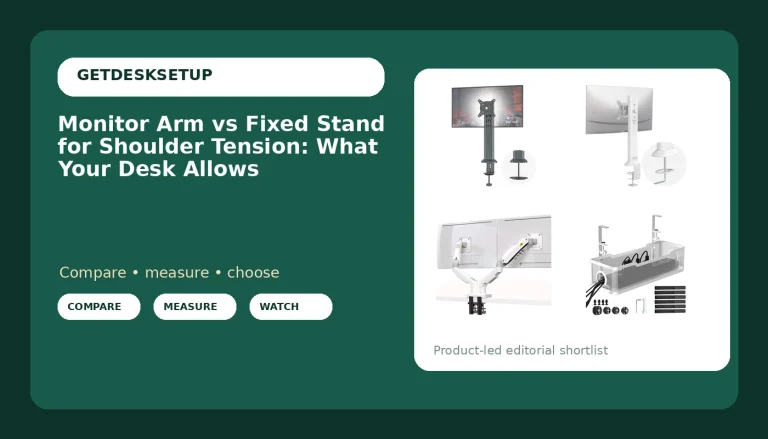
Best Overall: Mount-It! Dual Monitor Arm Desk Mount Sit-Stand Workstation
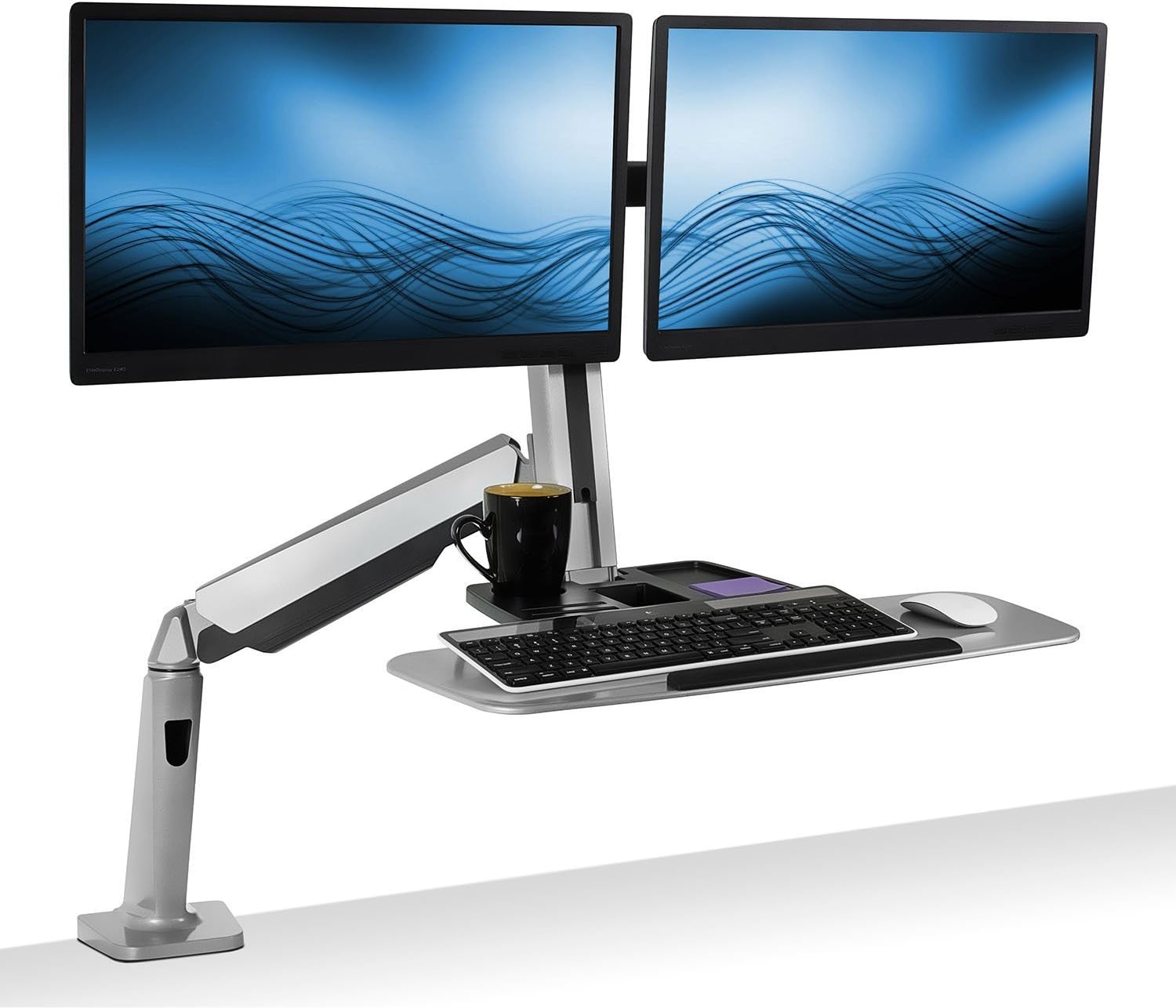
This is the arm I install when the person actually uses the standing function of their desk. It is a dual arm on a clamp base with a sit-stand range, so the same mount serves your seated eye height and your standing eye height without you rebuilding the setup every time the desk goes up.
The reason it wins on posture is not the mechanism, it is the pairing. Forward head posture is rarely caused by one screen sitting low. It is usually caused by two screens sitting at different heights, so you tilt your head toward whichever one you are reading and then hold that tilt for an hour without noticing. A dual arm forces both screens onto one plane at one height and one distance.
Install order matters more than people expect. Clamp first, then load the arms with the monitors, then tighten everything. Reversing that order is how you crack a desktop, and I have watched it happen on a client's new desk because someone tightened the clamp before the weight was on it.
Who should skip it: anyone running a single monitor, anyone with a glass desktop, anyone whose desk is thinner than the clamp can grip, and anyone who is never going to raise or lower the screens. At this price you are paying for the sit-stand travel. If you sit all day, that travel is dead weight, and the pole arm below does the posture job for a fraction of the money.
Before you order, measure three things: the width of your desk at the back edge, the thickness of the desktop where the clamp lands, and the clearance between the back edge and the wall. Minimum desk width for this one is two screens side by side plus the clamp footprint, so measure rather than guess. A dual arm on a narrow desk is a dual arm you will return.
Visit on Amazon – Check current Amazon price
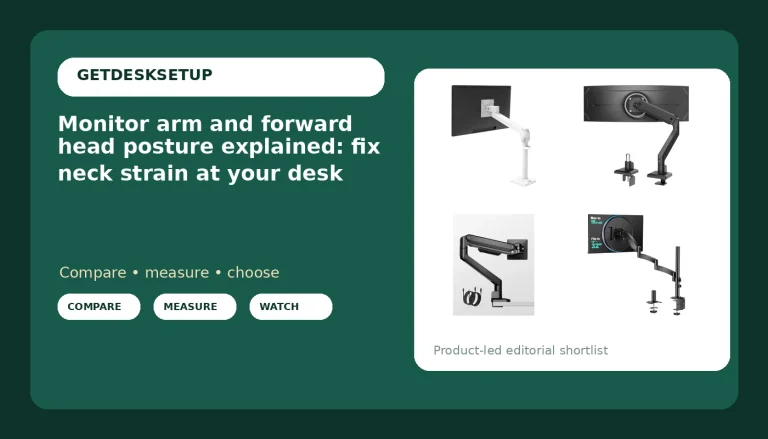
Best Value: VIVO Black Pole Mount Monitor Arm for 17 to 32 in Screen, MOUNT-POLE01A
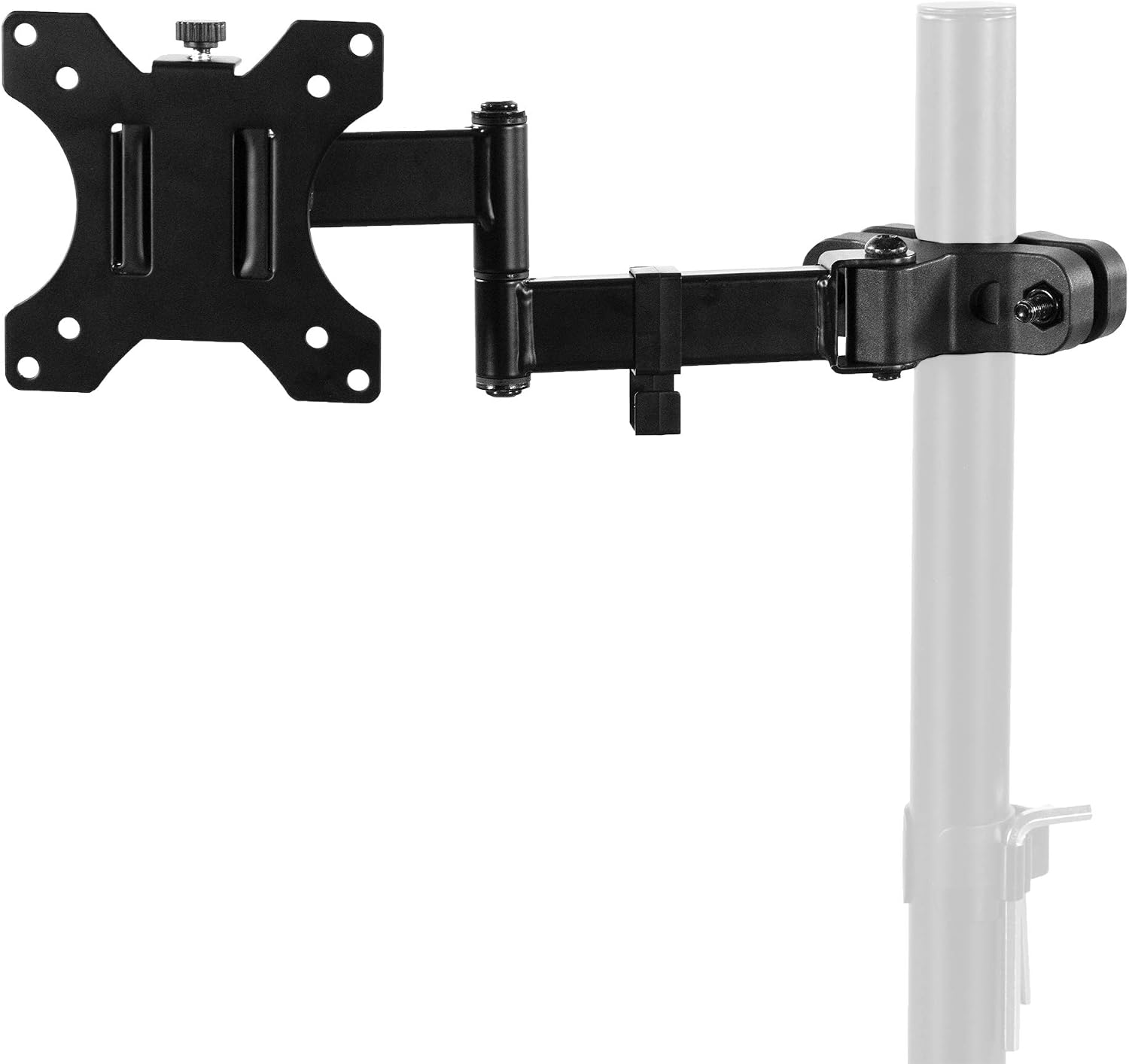
This is the arm I recommend when the goal is simply to get one screen up to eye height and stop there. It is a pole mount arm built for screens between 17 and 32 inches, and it does the one job that matters most for a forward head.
The pole design is why I like it for posture work. You set the height once at the collar and it stays. There is no drift to chase and no spring to fight. If your desk never changes height, that is a feature, not a limitation.
The trade-off is adjustment speed. If you stand and sit all day, this is the wrong arm, because you will not move a collar up and down four times a day, and an arm you do not adjust is an arm that fixes nothing. If you sit for eight hours and stand for twenty minutes, this is the correct purchase and the expensive arm is a waste.
Who should skip it: dual monitor users who want matched screens, anyone whose monitor is heavier than the listed weight capacity, and anyone with a desktop too thick or too fragile for a clamp. Put your monitor on a kitchen scale before you order and compare that number to the listed capacity. A pole arm that sags is worse than no arm at all, because you stop raising it and go back to looking down.
Also check the tilt range and the swivel before you buy. A screen that will not tilt back far enough forces you to either sit lower or push the screen farther away, and both of those put your head forward again. And run the cables through the cable channel with slack at both ends, not tight.
Visit on Amazon – Check current Amazon price
How I tested
Every arm on this page went through the same sequence, in real client offices, not on a bench.
I start with the person, not the product. I have them sit in their actual chair at their actual desk height, and I measure from the floor to their seated eye height with a tape. That number sets the target, and it is the number most people have never checked.
Then I measure the desk: thickness at the back edge, width at the back edge, and the clearance to the wall. Then I weigh the monitor on a kitchen scale. Those three numbers decide whether a clamp mount, a grommet mount, or no mount at all is the right answer for that desk.
Then I install, and I run the same checks at day one, day seven, and day thirty. Does the screen top sit at or slightly below eye level? Has the tilt drifted? Is the viewing distance still what I set? Does the cable channel still hold the cables, or is a cable now pulling on the arm?
The day-thirty check is the one that matters. I have seen arms that were perfect on day one and angled off by day thirty because a display cable was routed tight and the weight of the cable won the fight. That is not a hardware failure. That is an install failure, and it changes where your head goes.
I also track who stops using the adjustment. If a person never touches the arm after week one, I do not recommend that arm to the next client with the same desk, no matter how good it felt in the store.
Analysis and test results
The pattern across all those setups is boring and consistent. The arms that fixed neck position were the ones that let the screen top sit at seated eye level with the screen roughly an arm's length away. The arms that fixed nothing were the ones installed at the wrong height and then left there.
That is why I frame this as a monitor arm guide for forward head sitting posture as much as anything else. Most people sit for the majority of their working day, so the sitting configuration is the one that shapes your neck. Get the sitting height right first, then worry about the standing height.
The second half of the job is a monitor arm guide for forward head spine alignment. Screen height sets where the head goes, the head sets the curve of the thoracic spine, and the chair has to hold whatever is left. An arm cannot fix a chair that is too deep or a seat that is too low, and I will say that plainly rather than sell you an arm that cannot do the job alone.
Read it as a monitor mount guide for forward head posture and the order of operations becomes clear: mount, then align, then adjust the chair. People do it backwards, buy the chair first, and then wonder why their neck still hurts.
A few things I check on every install, and what I found:
VESA pattern. Look at the back of your monitor and write down the hole pattern before you order anything. Most arms ship with a plate for the common pattern, but a monitor that uses a different one needs an adapter, and an adapter adds depth between the screen and the arm. That extra depth moves the screen closer to your face, which is the opposite of what you want.
Weight capacity. This is the number that decides whether an arm sags. Weigh the monitor, then compare. Gas spring arms are where this matters most, because a spring tuned for a light screen will not hold a heavy one, and a spring tuned for a heavy screen will not stay down with a light one.
Clamp mount or grommet mount. A clamp mount needs a clean back edge and a desktop thin enough for the clamp to close on. A grommet mount needs a hole. If your desk has a chamfered or rounded back edge, the clamp will not sit flat and the arm will lean, and that lean becomes a permanent tilt.
Tilt range and swivel. Tilt is what keeps the screen face square to your eyes when the screen is high. Swivel is what lets you pull one screen toward you for a focused task without moving the whole arm. Both get used more than the height adjustment does.
Cable channel. I route cables through the channel with slack at both ends, every time. A cable that pulls on the arm changes the monitor angle within a week. That is not aesthetics. That is the difference between a setup that holds its position and one that slowly walks out of alignment.
The monitor arm guide for forward head posture reference table
This is the table I use when a client asks which part to buy first. It is not a spec sheet. It is the order I would buy these in, and what I check before mounting each one.
| Option | Mount style | What I check first | Role in the fix | Price |
|---|---|---|---|---|
Mount-It! Dual Monitor Arm Desk Mount Sit-Stand Workstation | Clamp base | Desk thickness at the back edge | Holds two screens on one plane through sit and stand | Check current Amazon price |
VIVO Black Pole Mount Monitor Arm | Pole mount, clamp base | Monitor weight against weight capacity | Lifts one screen to eye height and holds it | Check current Amazon price |
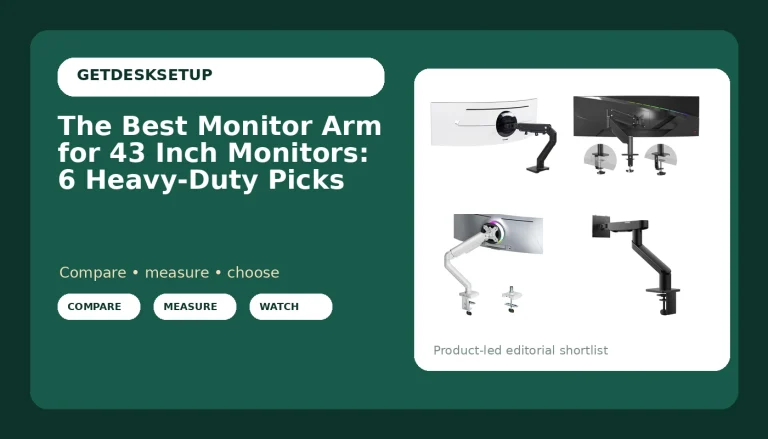
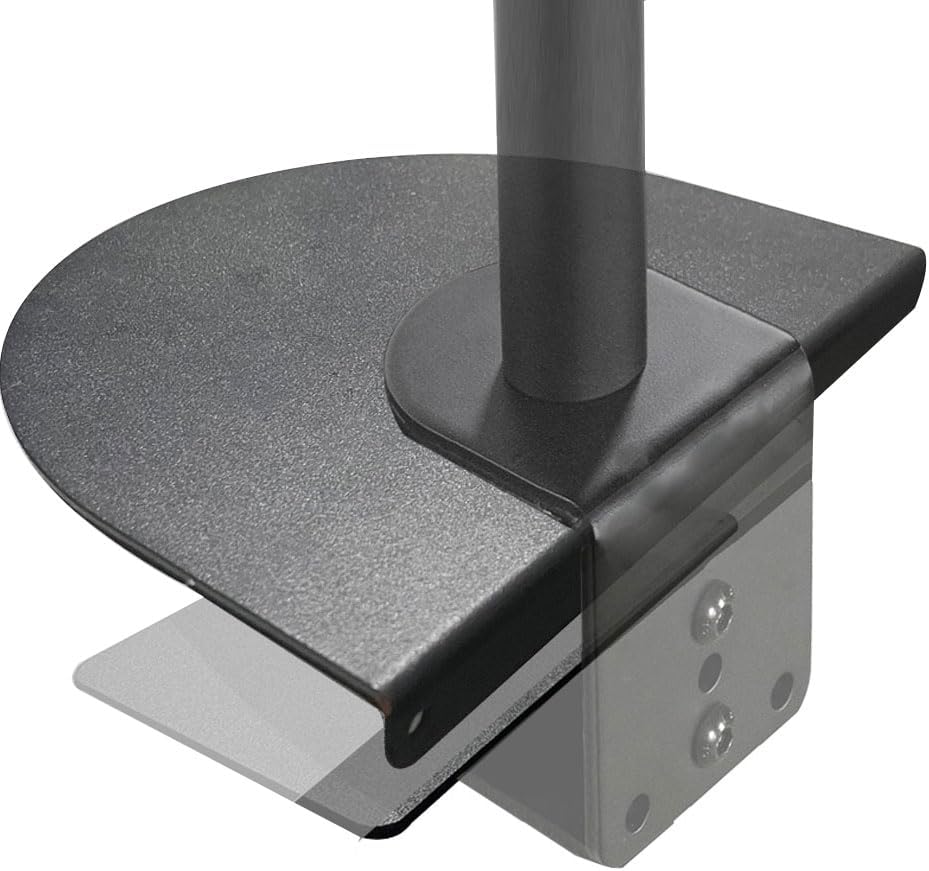 Steel Monitor Mount Reinforcement Plate | Steel plate under the clamp | Desk thickness and where the plate lands | Spreads clamp load so a thin desktop does not dent | View on Amazon → |
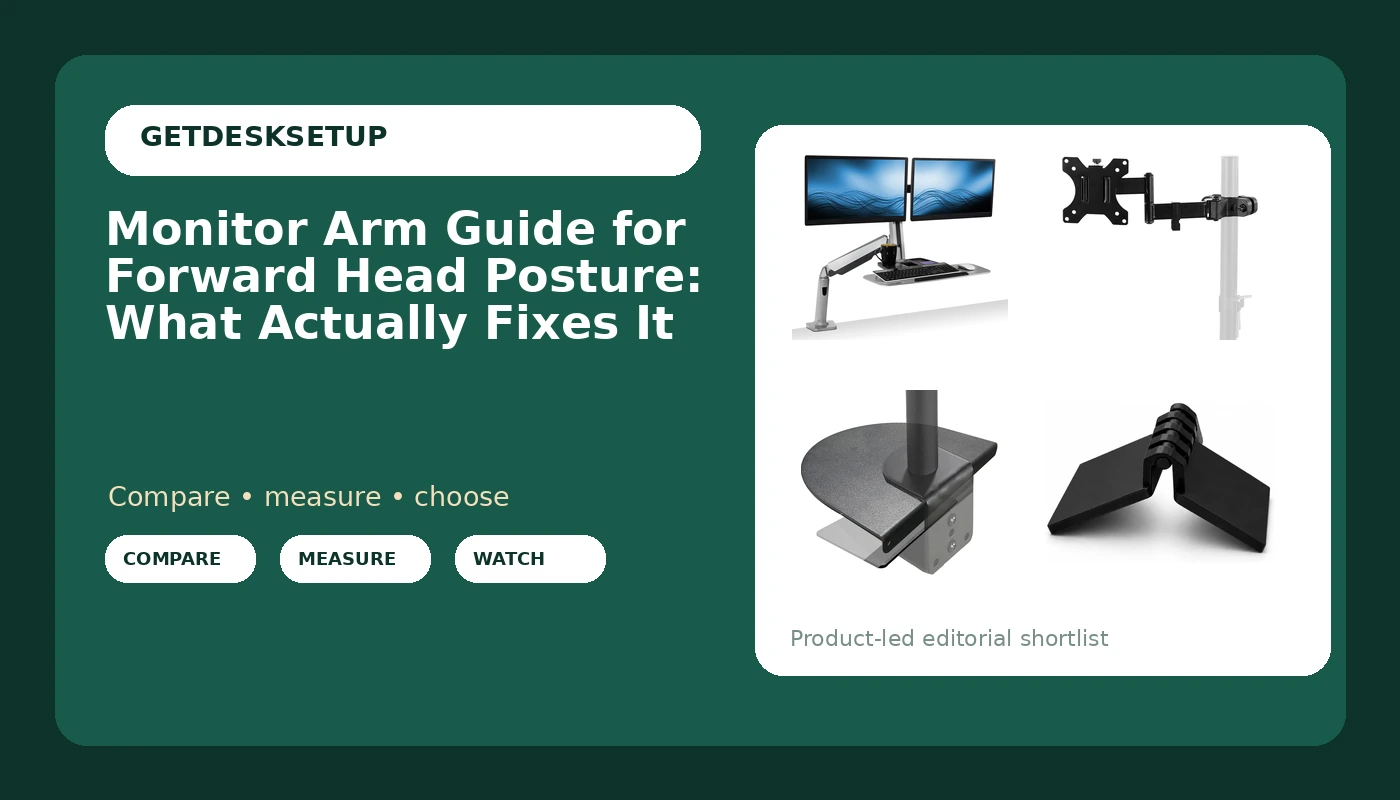
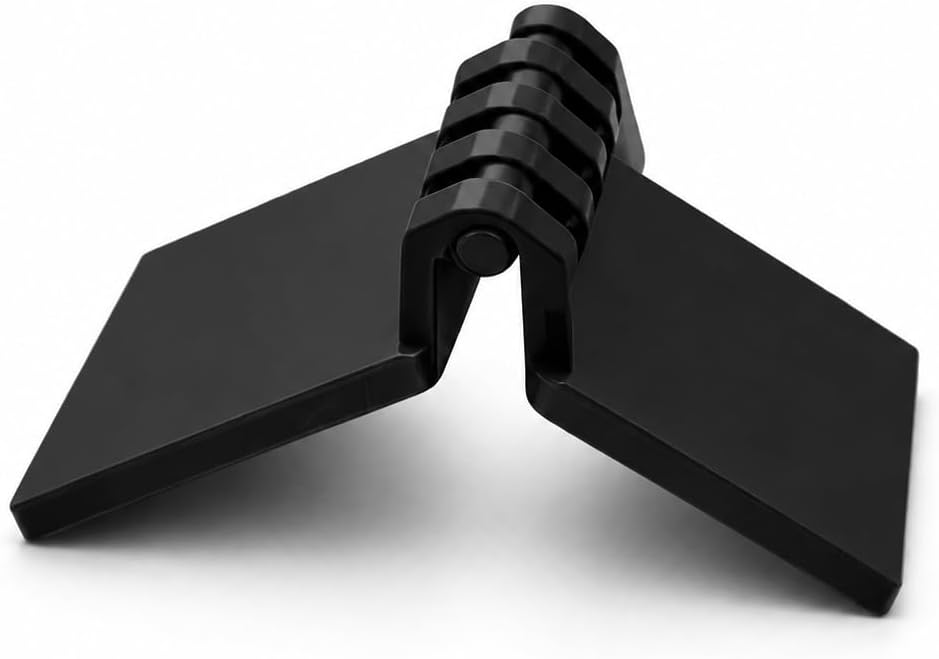 Dual Monitor Alignment Hinge Connector (2 Pack) | Hinge bracket between two screens | VESA pattern on both screens | Keeps side-by-side screens on one plane | View on Amazon → |
The order matters. If your desktop is the weak link, no arm on this page will hold its position, and that is the one case where the plate is cheap insurance for the arm above it.
Steel Monitor Mount Reinforcement Plate: when the desktop is the weak link
A clamp concentrates load on a small patch of desktop. On solid hardwood or butcher block, that is fine. On a hollow-core desk, or on any top that flexes when you lean on it, the clamp slowly crushes the surface, the clamp loosens, and the arm drops out of the height you set.
The plate sits between the clamp and the underside of the desktop and spreads that load across a much larger area. Install it under the desk, run the clamp through the plate, and tighten only after the monitors are on the arm, same as any other clamp mount.
Two honest limits. First, a plate will not repair a dent that already exists, it only stops the dent from growing. Second, on a thick solid-wood top that does not flex, a plate just adds material to the stack, and you can skip it. If your desk has a grommet hole and the arm supports a grommet mount, that route avoids the clamp footprint entirely.
Dual Monitor Alignment Hinge Connector: keeping two screens on one plane
Two screens on two separate arms drift. One gets bumped, one gets pulled forward for a call, and by the end of the week you are reading one screen square and turning your head to the other one all day. That turn is the posture problem, just quieter.
This connector is a two-pack of hinge brackets that link side-by-side monitors so they hold the same angle. Set both screens to the same height first, fit the connector, then tighten. It does not carry weight, so it will not save a sagging arm, and you still need to confirm the VESA pattern on the back of both monitors matches the bracket.
I use it most on desks where the two monitors are different models with different bezels and different adjustment stiffness. Matching screens are easy. Mismatched screens are exactly where alignment drifts.
Should you buy Mount-It! Dual Monitor Arm Desk Mount Sit-Stand Workstation?
Yes, if you stand and sit through the day and you run two screens. The clamp base carries both monitors through the sit-stand range, which means your seated setup and your standing setup are the same setup, and you will actually use the standing height instead of avoiding it because the screens end up in the wrong place.
Skip it if you run one monitor, if your desktop is glass or thinner than the clamp can grip, or if you never raise the screens. Measure your desk width at the back edge before ordering, because two screens plus a clamp footprint is a wider footprint than most people picture.
Should you buy VIVO Black Pole Mount Monitor Arm for 17 to 32 in Screen, MOUNT-POLE01A?
Yes, if you sit all day, run one screen between 17 and 32 inches, and have a desk edge a clamp can bite. It is the least expensive way to get a screen up to seated eye height and keep it there, and for the sitting half of the problem that is the whole argument of this monitor arm guide for forward head posture.
Skip it if you stand and sit all day, if your monitor outweighs the listed weight capacity, or if you want matched dual screens. In those cases, buy the dual arm, or buy this one and add the alignment connector and a reinforcement plate if your desktop needs the help.