Forward head posture is rarely a personality flaw. It is what happens when the screen sits lower and farther away than your eyes want, so your neck borrows the difference. The fix is mechanical rather than motivational: put the panel where your head can rest over your shoulders and your eyes can land on text without your chin lifting or dropping. That is where the monitor arm and forward head posture conversation actually starts, because an arm is the one common desk upgrade that changes screen height and screen distance at the same time. A monitor on its own base gives you one honest adjustment, which is a stack of books under the foot. An arm gives you height, reach, tilt, and swivel in a single bracket and clears the desktop underneath it.
Related: How to Set Monitor Height and Viewing Distance at Any Desk →
Quick answer
If you want the monitor arm and forward head posture explained in one line: top edge of the screen at or slightly below eye level, panel about an arm's length from your face, tilted back a few degrees so your eyes meet it square. An arm helps because it decouples screen height from desk height. You can raise the panel without raising the desk, and pull it closer without shoving a base into your keyboard space. It is not a posture cure on its own. An arm set too high, too far, or too low reproduces the same crane you had before. Match the arm to your screen's VESA pattern and stated weight capacity, confirm your desktop can take a clamp mount or a grommet mount, and skip the category entirely if your screen already sits at eye level and you do not need the desk space back.
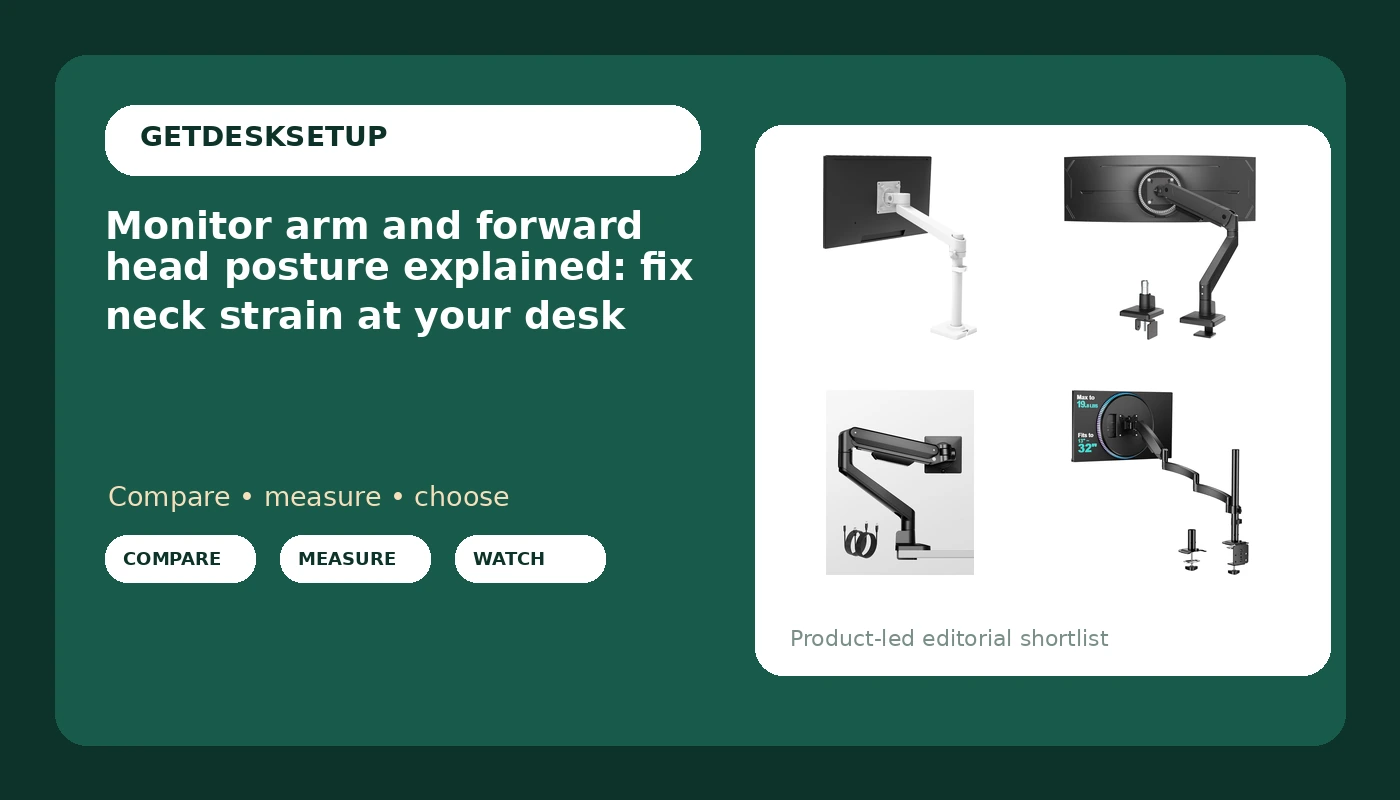
Four useful options
| Model | Best fit | What stands out |
|---|---|---|
| Ergotron, NX Single Monitor Arm, VESA Desk Mount, for Monitors Up to 34 Inches, 0 to 18 lbs, White | One standard screen on a desk you want to keep for years | Stated range covers screens up to 34 inches and 0 to 18 lbs, with a white finish that reads as furniture rather than hardware |
| monTEK Single Monitor Arm for Max 45 Inch Ultrawide Screens, Holds 35 Lbs | Large ultrawide panels that need a high stated weight capacity | Stated support for screens up to 45 inches and a 35 lb weight capacity |
| monTEK Deluxe Aluminum Monitor Arm with USB A/C for 17 to 40 Inch Screens | Desks where the monitor is also a charging point | Aluminum body with USB A and USB C ports built into the arm |
| WALI Extra Long Single Monitor Arm for 13-32 inch Screens, up to 19.8 lbs | Deep desks and corner setups where the mount has to sit far from the screen | Extra-long arm geometry, stated for 13 to 32 inch screens up to 19.8 lbs |
The baseline pick: Ergotron, NX Single Monitor Arm, VESA Desk Mount, for Monitors Up to 34 Inches, 0 to 18 lbs, White
This is the arm to pick when your screen is a normal single panel and you want the hardware out of the way. The stated 0 to 18 lb range is worth reading closely: the upper number is the panel weight the joint is built to hold, and the lower number matters if your screen is unusually light, because a spring tensioned for a heavier load will not hold a light panel still. Check the VESA pattern on the back of your monitor and weigh the panel with its stand removed before you order. Skip it if you run a 40 inch screen or an ultrawide, since both sit above the stated range.
The ultrawide pick: monTEK Single Monitor Arm for Max 45 Inch Ultrawide Screens, Holds 35 Lbs
A 45 inch panel is a lot of glass hanging off one joint, and that is why the weight capacity matters more here than the screen size figure. An arm rated well above your panel's actual weight holds its height setting with less drift, which is the whole point when you are trying to stop the screen from sinking below eye level over a month. Reach matters too: an ultrawide wants more distance from your eyes than a 27 inch panel, and a short arm cannot put it there if the clamp lives at the back of a deep desk. Check the VESA pattern before ordering, because large panels sometimes need an adapter plate. Skip this one if your desktop cannot take a clamp and you have no grommet hole, or if your screen is a small standard panel where the extra capacity buys you nothing.
The aluminum option with USB: monTEK Deluxe Aluminum Monitor Arm with USB A/C for 17 to 40 Inch Screens
The stated 17 to 40 inch range is the widest here, so this arm spans everything from a small secondary panel up to a large single screen. The USB ports are the reason to choose it over a plainer arm, and they are also the reason to skip it: if you never plug a phone, headset, or webcam into the arm, you are paying for ports you will not use. Aluminum construction is the other part of the price, and it matters most in how the arm feels when you push it, not in how it looks. Weigh your panel with the stand removed and measure the desktop thickness at the clamp position before you commit, because the clamp has to bite solidly for any of this to hold.
The long-reach pick: WALI Extra Long Single Monitor Arm for 13-32 inch Screens, up to 19.8 lbs
The long geometry is the entire point. On a 30 inch deep desktop, or in a corner where the clamp has to live on the side edge, a short arm forces you to choose between sitting back and having the screen in front of you. This one lets you do both, as long as your panel stays inside the stated 13 to 32 inch and 19.8 lb limits. Reach has a cost: the longer the arm, the more leverage your panel has on the joint, so check the tension after the first week and tighten if the screen has started to creep downward. Route cables through the cable channel with slack rather than pulling them tight, because a taut cable changes the screen angle within days. Skip it if your panel is heavier than the stated 19.8 lbs or larger than 32 inches.
Prices and availability may change. Product images, names, and retailer links are matched to verified listings. No current price, rating, stock status, or measured result is stated here without current evidence.
How a monitor arm and forward head posture are linked
Your head is heavy. In a neutral position the neck carries it with relatively little effort, but the further the head travels in front of the shoulders, the longer the lever the neck muscles have to hold. That is the whole mechanism behind forward head posture, and it is why screen position matters more than most people expect. Lower the screen and you drop your chin to read it. Push it too far away and you lean in. Pull it too close and you push your chest back and round the upper spine to make room. Each of those is a compensation for a screen in the wrong place, not a habit you can scold yourself out of.
An arm changes the geometry without changing the chair. Raise the panel so the top edge sits at or slightly below eye level and the neck has less reason to flex. Bring it closer so you stop leaning. Set the tilt so the screen faces your eyes instead of the ceiling, because a panel angled wrong makes you hold your head at an angle to read it. The relationship between a monitor arm and forward head sitting posture is a distance problem before it is a discipline problem.
The catch is that an arm only helps while it holds its setting. A joint that drifts under load, or a cable tugging on the back of the arm, changes the screen angle within a week. That is where the hardware details start to matter. Whether the arm uses a gas spring or a mechanical joint, the tension has to match your panel's weight. You need enough tilt range to bring the screen face to your eyes, enough swivel to angle it toward your seat, and a cable channel that keeps wires from dragging on the arm.
Matching the mount to your screen and your desk
Two numbers decide whether an arm works in your room: the VESA pattern on the back of the panel and the weight of the panel with its stand removed. A kitchen scale and a tape measure settle both in about five minutes, and they are the same measurements that tell you whether the arm can hold the screen where you set it.
The desk matters just as much. A clamp mount grips the edge of the desktop and needs a flat edge with enough thickness to bite. A grommet mount passes through an existing hole and is the better answer for a thin or glass-topped desk you do not want to compress. Measure the desktop thickness at the clamp position, and measure the distance from that position to where the center of the screen needs to sit. An arm with short reach cannot put a panel in front of you if the mount has to live at the back of a deep desk.
Then set the screen, not the other way around:
- Weigh the monitor with the stand removed and compare it against the arm's stated weight capacity.
- Confirm the VESA pattern on the back of the panel matches the mounting plate, and check whether a large panel needs an adapter.
- Measure desktop thickness at the clamp position, or find the grommet hole and measure its diameter.
- Sit down, close your eyes, open them, and note where they land. That is where the top of the screen goes.
- Set tilt and swivel last, then route cables through the cable channel with enough slack that they never pull on the arm.
Setting the arm so your neck stops compensating
- Set the chair first. Seat height and seat depth decide where your eyes land, and a screen set for the wrong chair height goes wrong the moment you fix the chair.
- Put the top edge of the panel at or slightly below eye level, then check that you can read the bottom line without dropping your chin.
- Keep the panel roughly an arm's length from your eyes. If you catch yourself leaning in by the end of the day, pull the screen closer rather than pushing your chair back.
- Tilt the screen back about 10 to 20 degrees so its face meets your gaze. Every monitor mount and forward head posture adjustment comes down to this: the screen should face your eyes, not your chest.
- Take a side photo after a week. The monitor arm and forward head spine alignment relationship is easiest to judge in a picture where you can see whether your ear sits over your shoulder or ahead of it.
Which option should you choose?
Choose the Ergotron, NX Single Monitor Arm, VESA Desk Mount, for Monitors Up to 34 Inches, 0 to 18 lbs, White when your screen is a standard single panel inside the stated 34 inch and 18 lb range and you want a clean white mount that stays out of the way. Choose the monTEK Single Monitor Arm for Max 45 Inch Ultrawide Screens, Holds 35 Lbs when you run a large ultrawide and need the stated 35 lb capacity to hold it at height. Choose the monTEK Deluxe Aluminum Monitor Arm with USB A/C for 17 to 40 Inch Screens when the monitor doubles as a charging point and you want the ports on the arm instead of on the desk. Choose the WALI Extra Long Single Monitor Arm for 13-32 inch Screens, up to 19.8 lbs when the mount has to sit far from the screen on a deep desk or a corner.
The caveat is that none of these numbers describe your body. The arm sets the screen; the chair sets your hips and shoulders. That is the whole monitor arm and forward head posture equation, and it is why the order matters. If the chair height and depth are wrong, the best arm on this list still leaves you reaching for the screen.
The bottom line
A monitor arm is a positioning tool, not a posture guarantee. It earns its place when a screen on its own stand cannot reach eye level, when the desk is too deep for you to sit back and still read, or when the base is eating the space your keyboard needs. Get the VESA pattern and the panel weight right, choose clamp or grommet based on your actual desktop, and set the top of the screen at eye level with the panel an arm's length away. Then take a side photo a week later. If your ear is still ahead of your shoulder, the screen is still in the wrong place, and the fix is another inch of height or a shorter reach, not a new purchase.