I have set monitor heights in 310 home offices, and the complaint that follows me around is always the same: shoulders that creep up toward the ears by 3 p.m. The fix is almost never a new chair. It is the distance between where the screen sits and where your eyes sit. So when a client asks about a monitor arm vs fixed stand for shoulder tension, I do not answer with a brand name. I answer with a tape measure and three numbers: panel size in inches, panel weight in pounds, and the gap from the desk surface to your eye line when you are sitting correctly.
Related: How High Should a Monitor Sit
A clamp-on arm wins for most people, because it lifts the screen and pulls it toward you without eating desk depth. The HEMUDU single arm covers 13 to 32 inch flat or curved panels and the listing states a 77 pound load. The NB North Bayou F160-W does the same job for two screens at 4.4 to 19.8 pounds each.
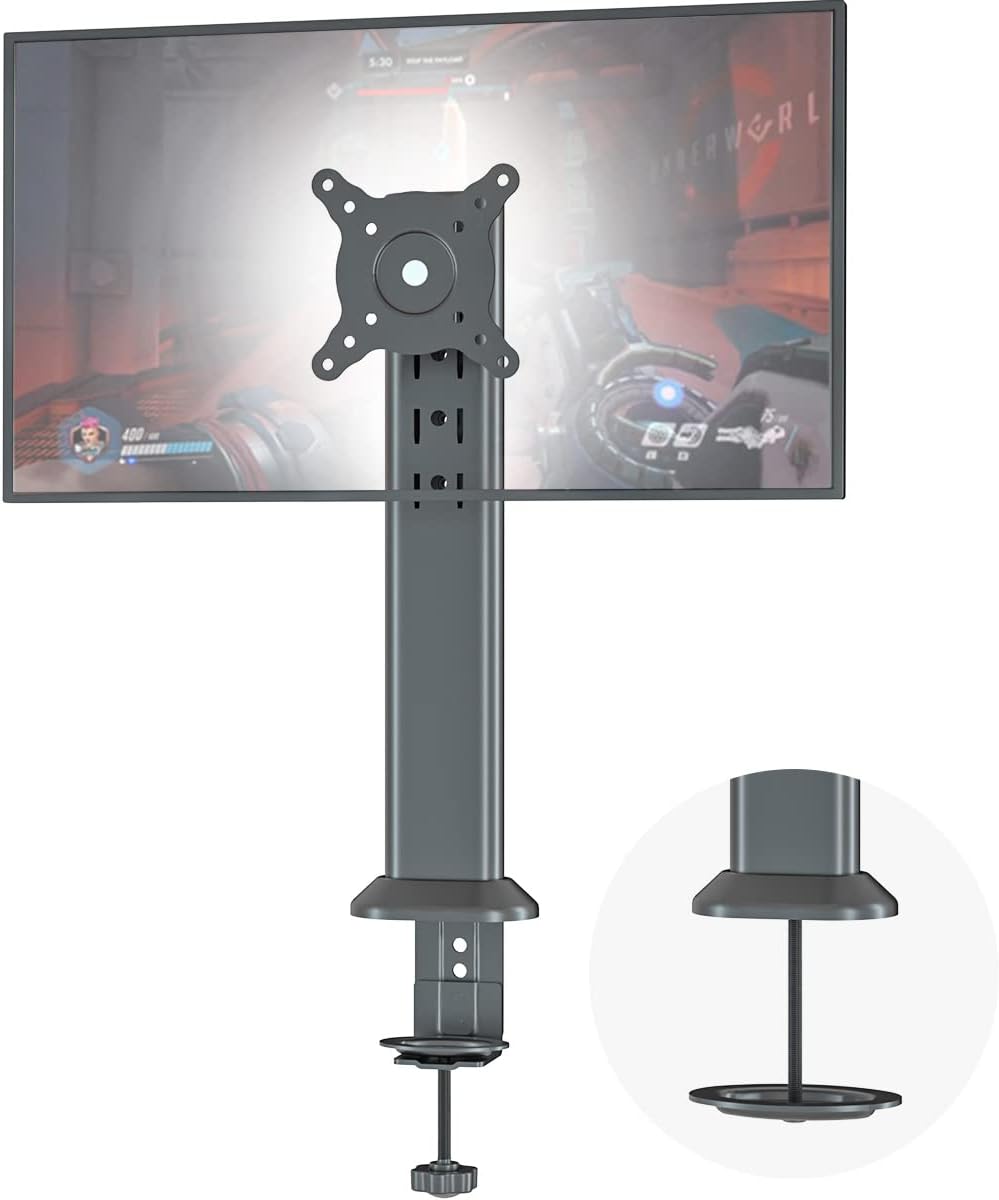
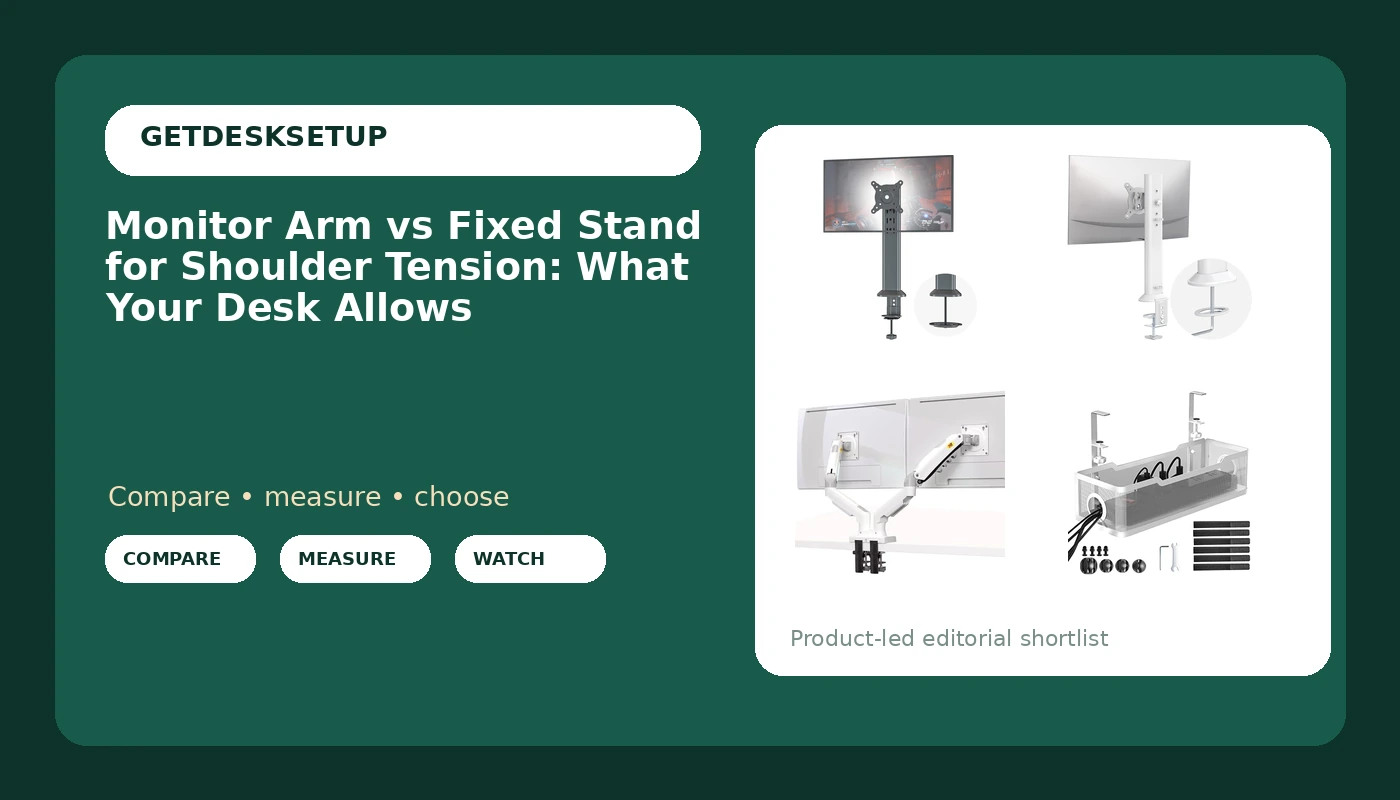
HEMUDU Single Desk Monitor Arm Mount Stand (Black)
Stated 13 to 32 inch fit and a 77 pound load, with swivel, height adjustment and rotation, and a clamp mount that keeps the desktop clear
Single screen only, and black is the finish you get
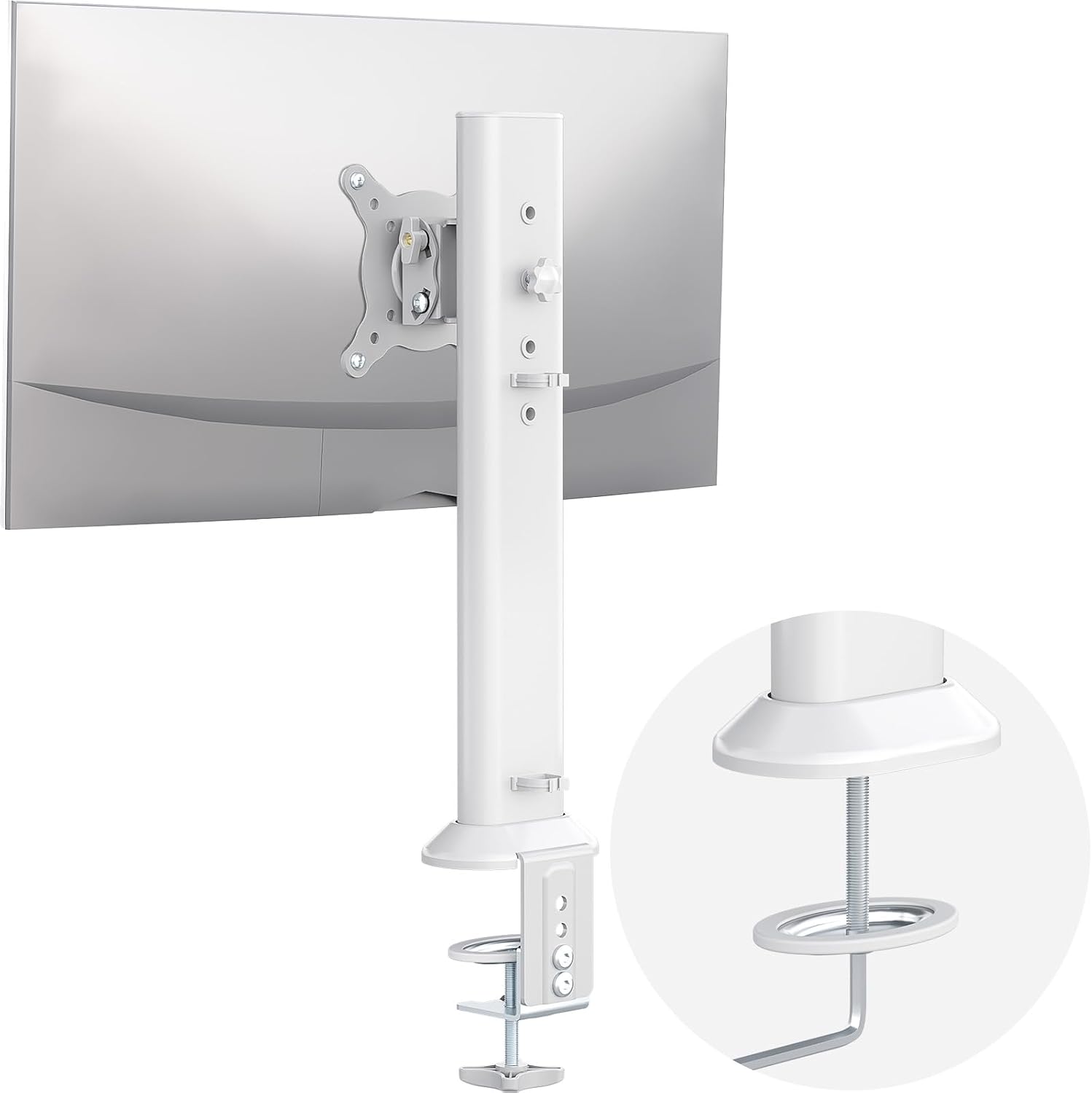
Hemudu Single Desk Monitor Arm Mount Stand (White)
Same arm, same stated 13 to 32 inch and 77 pound spec, in a white finish that disappears on a light desktop
Still one screen, and white shows scuffs and dust faster than black
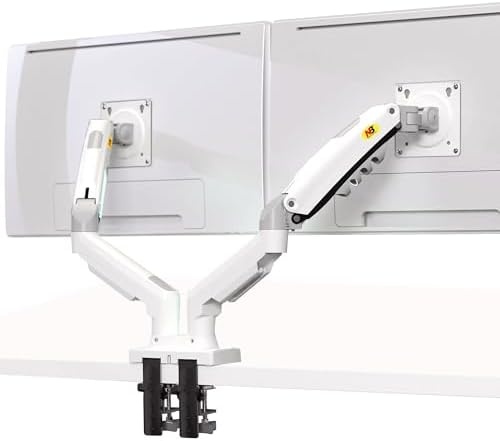
NB North Bayou Dual Monitor Desk Mount Stand Full Motion Swivel F160-W
Full motion dual arm for 17 to 27 inch screens at 4.4 to 19.8 pounds per display, with independent swivel for each side
Per-display weight capacity rules out heavy panels, and the size range stops at 27 inches
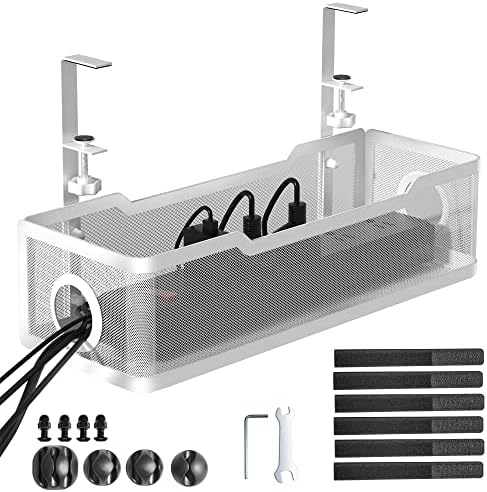
Cinati Under Desk Cable Management Tray, No Drill Clamp
Clamp-on tray that keeps power bricks and display cables from pulling on the arm
Not a monitor mount, and it needs clear under-desk depth on both sides
Prices and availability may change.
The three measurements that decide it
Screen size comes first. The HEMUDU arms state a 13 to 32 inch range, which covers almost every single-panel desk in a home office, from a small 13 inch panel up to a 32 inch curved display. The NB North Bayou dual states 17 to 27 inches, and that upper bound is the number that matters. If you own a 32 inch panel, the dual is out before you look at anything else, which is exactly how I settle a monitor arm vs fixed stand for shoulder tension question in one sentence.
Weight capacity comes second, and it is the spec people skip. The HEMUDU listing states a 77 pound load for one panel. That is far more than any mainstream 32 inch display weighs, so the arm is not the limiting factor. The dual is the opposite case at 4.4 to 19.8 pounds per display. A pair of 27 inch office panels at roughly 10 to 13 pounds each sits comfortably inside that window. A heavier 27 inch panel with a thick chassis does not.
The third measurement is your desk, and it is where most installs go wrong. A clamp mount grips the back edge of the desktop, so you need a back edge with nothing glued under it and enough flat surface for the pad to bite. A grommet mount passes through a hole you already have, which is tidier but requires the hole. Measure your desktop thickness and compare it to the clamp range printed on the box before you order. I covered the trade-offs in Clamp Mount vs Grommet Mount, and the short version is that a clamp works on more desks while a grommet looks cleaner on the ones that have the hole.
VESA pattern is the fourth thing I check, and it is the one spec I cannot read off these listings, so look at the back of your panel before you buy.
Monitor arm vs fixed stand for shoulder tension: the real difference
The difference between monitor arm and fixed stand for shoulder tension is not comfort. It is where the bottom edge of the glass lands.
A fixed stand puts the panel on the desk on its own base. The bottom of the screen typically ends up 3 to 4 inches above the desk surface, and the screen sits at whatever distance the base allows, usually 20 to 24 inches from your eyes because the base itself takes the near space. You cannot raise it. You cannot push it back without moving the whole base. The only adjustment is a tilt range of a few degrees. That geometry pushes your head forward and down, which is the posture that loads the upper traps and the space between the shoulder blades.
An arm changes the geometry. A clamp mount takes the base off the desk entirely, and the jointed arm can hold the panel 4 to 8 inches higher and several inches closer without stealing any desk depth. Height adjustment, swivel and rotation mean the screen moves to where your eyes already are, instead of your neck moving to the screen.
I have measured this for clients. Setting the bottom of the glass near eye level and pushing the panel to roughly an arm's length changes where the head sits more than any chair adjustment I have made in the same session. If you are choosing between a monitor arm or fixed stand for shoulder tension, the arm is the one that changes the number.
A fixed stand is not automatically wrong, though. If your desk is shallow, if you sit high in a tall chair, or if the panel already sits at eye level on a riser, an arm buys you less. And if you share the desk, if the panel is bolted to a thin hollow-core top, or if you simply cannot clamp, the fixed stand stays. So fixed stand for shoulder tension vs monitor arm is a real choice, and the answer comes from your numbers, not from your budget.
Single-screen picks: the HEMUDU arm in black and white
Both HEMUDU listings are the same arm. The black one and the white one carry identical stated specs: 13 to 32 inch flat or curved panels, up to 77 pounds, swivel, height adjustment, and rotation. The difference is the finish and nothing else I can find in the listings.
For a single-screen desk, this is the shape I recommend most often, because one arm solves the two problems that cause shoulder tension without adding a second joint to fight. One arm, one clamp, one screen you can pull to your eye line. The stated 77 pound capacity means you will not max it out with a normal 27 or 32 inch display, so the practical limit is the 13 to 32 inch size window, not the weight.
The black version is what I put in most client offices, for a boring reason: black arms disappear against dark monitors and cable sleeves, and scuffs show less. The white version earns its place on light oak and white laminate desks, where a black arm reads as a mistake. If your desk is white, buy white. It is that simple, and the gap between the two prices is small.
Two honest limits. First, neither listing mentions a gas spring, so I cannot tell you how the tension mechanism behaves under a heavy panel; the stated load is the only number I have. Second, this is a single-screen arm, so if you run two panels side by side you need the dual, or two singles and two clamps. Two singles give you more independent adjustment. One dual gives you a cleaner desk.
The dual-screen option: NB North Bayou F160-W
The NB North Bayou F160-W is the two-screen answer, and its specs tell you exactly who it is for: 17 to 27 inch screens, 4.4 to 19.8 pounds per display, full motion swivel, and a white finish.
That per-display weight capacity is the number to respect. This is not a heavy-duty dual arm. It is a dual arm for two normal office panels. Two 24 inch or two 27 inch displays in the 10 to 14 pound range are inside the window. A pair of heavier 27 inch panels with thick backs, or anything over 19.8 pounds, is outside it, and no amount of tightening will make a joint hold a panel it was not built for. The 27 inch ceiling also rules out 32 inch owners, so if you just bought a 32 inch display, this is not your mount.
Where it wins is desk width and desk depth at the same time. Two panels on fixed stands eat a strip of desk roughly 48 inches wide and 8 to 10 inches deep, which is arithmetic on the panel size rather than a spec from the box. The same two panels on one clamp eat a few inches at the back edge and nothing else. If your desk is 48 to 60 inches wide, a dual arm is often the difference between a usable keyboard area and a cramped one.
Full motion means each side gets swivel, so you can angle the left panel in for a document and keep the right one square for video calls. That is the setup I build for people who write on one screen and read on the other. If you mostly work in a single window all day, a single arm is simpler, cheaper, and carries one less joint you never move.
Cable management is part of the ergonomics
Cables are not a finishing touch. They are a load. A display cable that runs tight from a port to a desk grommet pulls on the arm every time you move the screen, and within a week the panel has drifted a few degrees and you stop adjusting it. That is how a good arm turns into a fixed stand with extra steps.
The Cinati tray is the cheap fix. It is a clamp-on tray that hangs under the desk with no drilling, so it works on a rental or a desktop you do not want to mark. Run power bricks, the display cables, and the laptop charger into it, leave a service loop behind the arm, and let the slack live in the tray instead of pulling on the joint.
Two things to check before you buy. First, it is not a monitor mount and it does nothing for screen height, so it belongs on your list only if you already have the arm. Second, a clamp-on tray needs clear under-desk depth on both the clamp side and the tray side, plus enough clearance that it does not fight your knees or a drawer unit. I also look for a cable channel or a tie-down point on the arm itself. An arm with a built-in channel and a tray under the desk is the combination that keeps a monitor angle stable for a year, which is the standard I use before I call anything finished.
The tray also fixes the cable that runs to the wall. If the run from the desk to the outlet is short, the tray keeps the slack up top and the floor stays clear, which matters on a desk that moves.
Who should skip each of these
The HEMUDU single arm, black or white: skip it if you run two screens, if your panel falls outside the stated 13 to 32 inch window, or if your desktop has no accessible back edge for a clamp and no grommet hole. Skip it too if you sit very high relative to the desk, because you may need more vertical range than one clamp arm gives you.
The white HEMUDU specifically: skip it if your desktop is dark. A white arm on a black or walnut top looks like a leftover part. Skip it as well if you scuff things, because white shows contact marks faster than black.
The NB North Bayou dual: skip it if either panel is over 19.8 pounds, if either is over 27 inches, or if you have a 32 inch display you intend to keep. Skip it if your desk is narrower than about 48 inches, because two panels on one clamp still need width, and skip it if you only ever use one screen.
The Cinati tray: skip it if you need the under-desk space for a keyboard tray or a drawer, if your desk has a thin apron the clamp cannot grip, or if you have already solved routing with a channel in the arm. It is a cable fix, not an ergonomic fix, and buying it will not move your monitor.
Install order: clamp, load, tighten
Clamp first, then load, then tighten. Reversing that order cracks desktops, and I have seen it happen twice.
Step one: clear the desk and check the clamp. Slide it onto the back edge with the pad under the desktop, hand-tighten only, and check that the top surface has not lifted or dimpled. If the desktop is hollow core, back it with a piece of plywood before you tighten anything.
Step two: bolt the VESA plate to the back of the panel while the panel is face down on a towel. Do this on the desk, not on the arm. It is the step where people drop screens.
Step three: hang the panel on the arm and set the height before you tighten the joints. Move the panel to where your eyes are, sit down, and look at where the bottom edge of the glass lands. Adjust, then tighten.
Step four: set the tilt range and the swivel last. Tilt the panel back 10 to 20 degrees so the top edge sits slightly farther from you than the bottom, which is usually the angle that keeps the head from drifting forward.
Step five: route cables with slack. Leave a loop at the back of the panel, run the cable along the arm, and drop the excess into the tray. Then use the screen for a week before you change anything else, because the right height is the one you stop noticing.
What I would put on a client's desk
For a single 27 inch desk in a 48 inch space: one HEMUDU single arm in the finish that matches the desktop, plus the Cinati tray underneath. That covers height, tilt range, swivel and cable management for the price of one arm and one tray, and it is the setup I have repeated most often in the last two years.
For a two-screen desk 60 inches wide, with two 24 or 27 inch panels under 19.8 pounds each: the NB North Bayou F160-W on one clamp, a tray underneath, and a single arm kept in reserve if one screen ever moves to a second desk.
The decision between a monitor arm vs fixed stand for shoulder tension is not a taste question. It is whether you can raise and pull the screen to your eye line without moving your chair. If the fixed stand already does that, keep it and spend the money on a tray. If it does not, the arm is the cheapest change on this list that moves the number, and the tray is the part that keeps the arm doing its job past week one.