Related: Best monitor arms for a small home office
This is a monitor arm guide for video editors, which means it starts with numbers instead of adjectives. A timeline panel and a reference panel are two different loads, and the arm has to hold both at the angle you set them. I have clamped, loaded, and re-tightened mounts on more than 300 client desks, and the failures are always the same three: the wrong VESA pattern, a weight capacity that was close enough to be dangerous, and a cable that pulls the arm out of level inside a week.
Every monitor mount guide for video editors I have read skips the only three questions that decide the purchase. Does the panel have a VESA pattern, how much does it weigh, and how wide is the desk it is going on. Get those right and almost any arm here will hold. Get them wrong and the best-reviewed mount on the internet will still sag by Friday. If you are still sorting out the desk itself, my notes on sizing a desk for two screens cover the width question before you spend anything.
Best Overall: Modernsolid Dual Monitor Arm Desk Mount for Two 17-32 Inch Screens
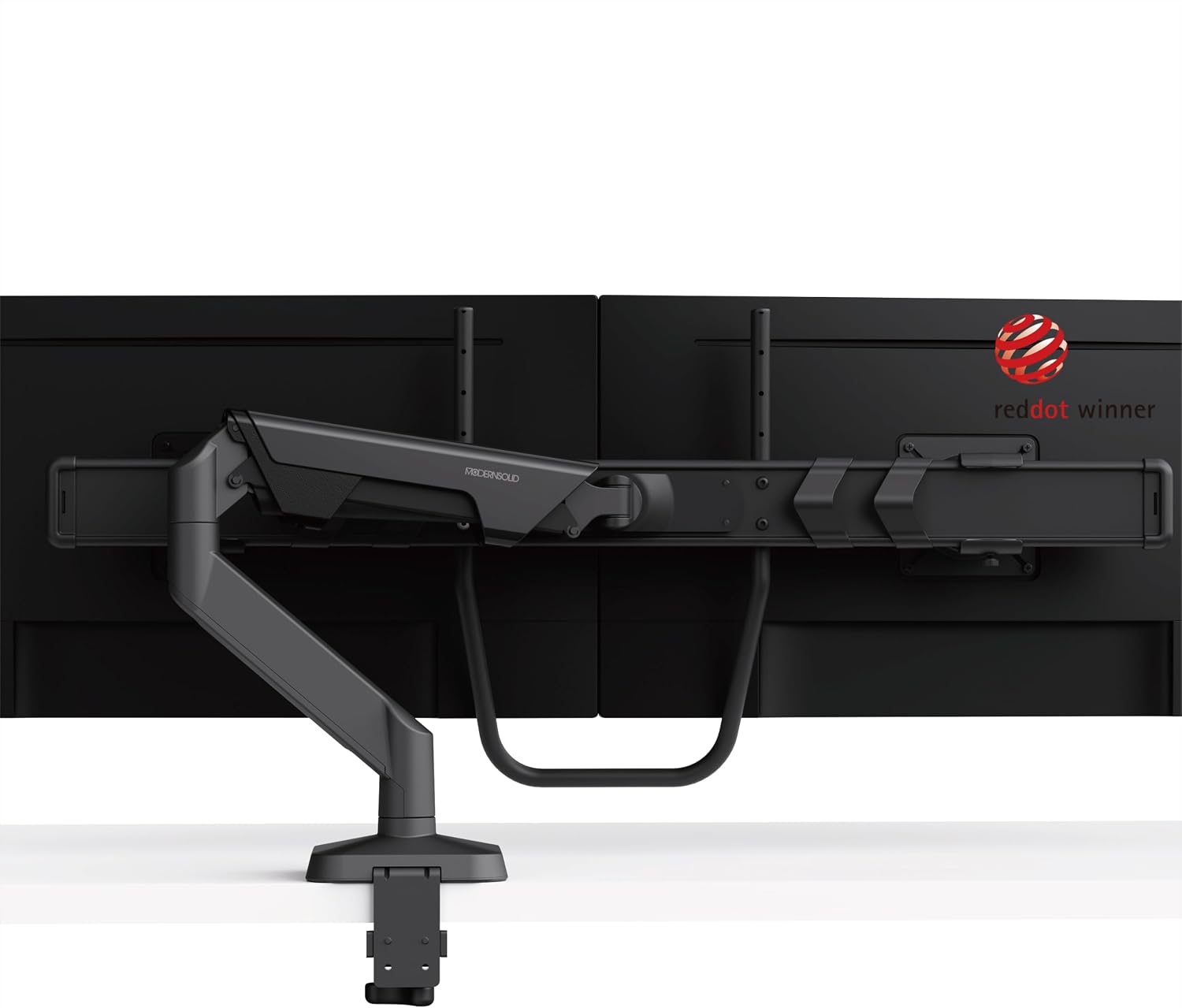
Two screens on one base is the entire argument for this arm. One mount at the back edge of the desk, two arms, and both panels land at the same height without a second base crowding the surface. The stated screen range is 17 to 32 inches per side, which covers the pairing I install most often: a 24-inch timeline monitor and a 27-inch reference panel, both sitting inside the range with room left over.
Weight is the number that decides whether a dual arm works. Two panels means twice the load on one mount, and that mount is gripping a desk edge rather than bolting into a stud. Before you buy, weigh both panels or read the shipping weight off the listing. Run a dual arm near the top of what it will hold and the joints stop holding an angle overnight, which means re-tightening the tilt every morning before you start cutting.
Matched heights are the quiet benefit here. When two screens sit on their own factory stands, the panels almost never line up, and you spend the first ten minutes of every session looking at a seam that is an inch out of true. One base with two adjustable arms fixes that in about five minutes.
Who should skip it: anyone editing on a single screen, anyone whose panels fall outside 17 to 32 inches, and anyone working on a desk narrower than about 48 inches. Two panels need lateral room for the arms to swing behind the desk, and below that width the arms fight each other at the back edge. I have hit this on a client's 40-inch desk, and the fix was a different desk, not a different arm.
Skip it too if you need one screen to swing sideways for a client or a producer. A dual arm holds two panels in a fixed relationship. If one of your screens travels, buy two single arms instead. That is a real trade, not a knock on this mount.
Set the joint tension with the panels loaded, never empty. An arm tensioned without a load will droop the moment you let go of the screen.
Best Value: ErGear Single Monitor Arm for 13-36 Inch Screens, 22 lbs Capacity
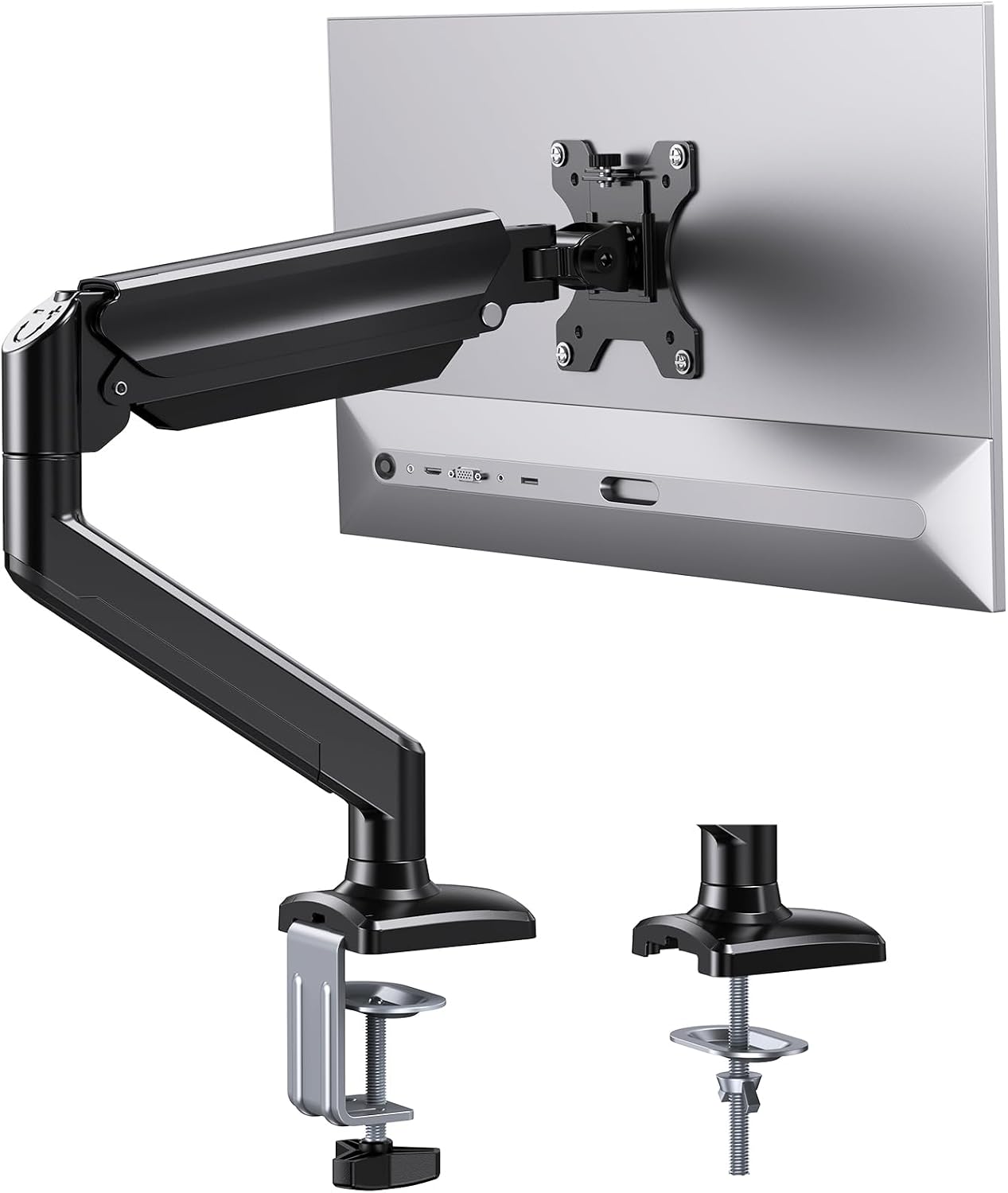
Two numbers on this listing do all the work: 13 to 36 inches of screen size and a 22 lb weight capacity. A screen arm guide for video editors usually stops at the screen size range, but the capacity is the figure that decides. That range covers nearly every single editing panel in service, from a small field monitor up to a 32-inch 4K display, and 22 lbs is more headroom than most editors will ever use on one screen.
A single arm also solves something a dual arm cannot. With one base and one arm you can push the panel back over the rear edge of the desk when you need the surface for a keyboard and a notebook, then pull it forward when you sit down to grade. That travel is why a lot of editors end up on a single arm even after they add a second screen to the room.
Route the display cable through the cable channel with slack at both ends. A tight cable turns the arm into a lever, and a lever beats the joint tension every time.
Who should skip it. If your monitor weighs more than 22 lbs, this is not your arm, and that is not a number to guess at. Weigh the panel or look up the shipping weight. A 32-inch panel with a metal chassis can land heavier than people expect. Skip it too if you need two screens on one base, or if your panel is larger than 36 inches, which puts you into a different class of mount entirely.
Check the clamp mount before you order. A desk mount needs an edge it can grip, and a desk with a thick apron or a fully welded frame at the back may not offer one. Measure the edge, then read the clamp range in the listing. If the edge is wrong for a clamp, you are shopping for a grommet mount or a wall mount, not this.
How I tested
Every arm in this guide gets the same seven-day test before it goes onto a client desk, and I run it in the same order every time. Clamp first, then load, then tighten. Reversing that order cracks a desktop, and I have seen it happen twice.
Day one: mount the arm, hang the panel, set the tilt range and the swivel where the editor actually wants them, then mark the arm's position on the pole with painter's tape. Day seven: check the mark. If the arm has slid down the pole, the load is pushing past what the joint can hold, whatever the listing claims.
Then the cable test. Run the display cable through the cable channel with a little slack at both ends, and move the arm through its full tilt range. If the cable pulls the arm, the angle will change within a week. That is not an aesthetics problem. That is a monitor that slowly tips forward while you work.
Then the edges: full tilt up, full tilt down, full swivel left and right, and I note where the arm binds or where the panel's own bezel stops it short. I check the VESA pattern on the panel against the plate on the arm, because a 75×75 panel on a 100×100 plate is the most common reason a mount gets sent back.
Last, the desk edge. I measure the edge thickness with a tape and compare it against the clamp range in the listing, because a clamp that barely closes will creep under a load.
Analysis and test results
Four things decide whether a monitor arm works on an editing desk: the VESA pattern, the weight capacity, the desk edge, and the cable path. Everything else is marketing.
VESA pattern first. A panel either has 75×75 or 100×100 holes on the back, or it has nothing. If it has nothing, no arm bolts to it without adapter brackets, which is why one of the picks below exists. If it has holes, check the size. Many arms ship with a plate that takes both, but not all of them, and a plate that does not match is a return.
Weight capacity second, and it is where people get burned. A capacity number is a ceiling, not a target. An arm run at 90 percent of its rating holds for a month and then starts to drift at the tilt joint. Whether that joint is a gas spring or a friction hinge, the test is the same: load the panel, set the angle, and check it a week later. I want margin, and I want the margin stated on the listing. That is why the 22 lb figure on the value pick matters more than the screen size range printed next to it.
The desk edge third. A clamp mount and a grommet mount solve different desks, and you cannot choose between them until you look at the back of your desk. A clamp needs a flat edge with clear space beneath it. A grommet needs a hole. If you have neither, the arm is not the problem.
The cable channel last, and as an installer this is the one I care about most. A cable run tight through a channel turns the arm into a lever, and the arm loses. Slack at both ends, a gentle loop at the joint, and the mount stays where you put it. That is the difference between a screen arm that holds an angle for a year and one you re-tighten every Monday.
That is the whole of this monitor arm guide for video editors: pattern, capacity, edge, cable. Four checks and a tape measure, and you will not buy the wrong mount.
Reference table: monitor arm guide for video editors
Treat the table below as a vesa monitor arm guide for video editors. The screen ranges and weight capacities are the stated ranges from each listing. Where a listing does not state a figure, I am not going to invent one, so the cell reads as a check you still have to make yourself.
| Arm | Mount type | Screen range | Weight capacity | VESA pattern | Fits |
|---|---|---|---|---|---|
Modernsolid Dual Monitor Arm Desk Mount | Desk mount, two screens | 17-32 in per screen | See listing | See listing | A two-screen edit bay on one base |
ErGear Single Monitor Arm | Desk mount, one screen | 13-36 in | 22 lbs | See listing | One panel of almost any size |
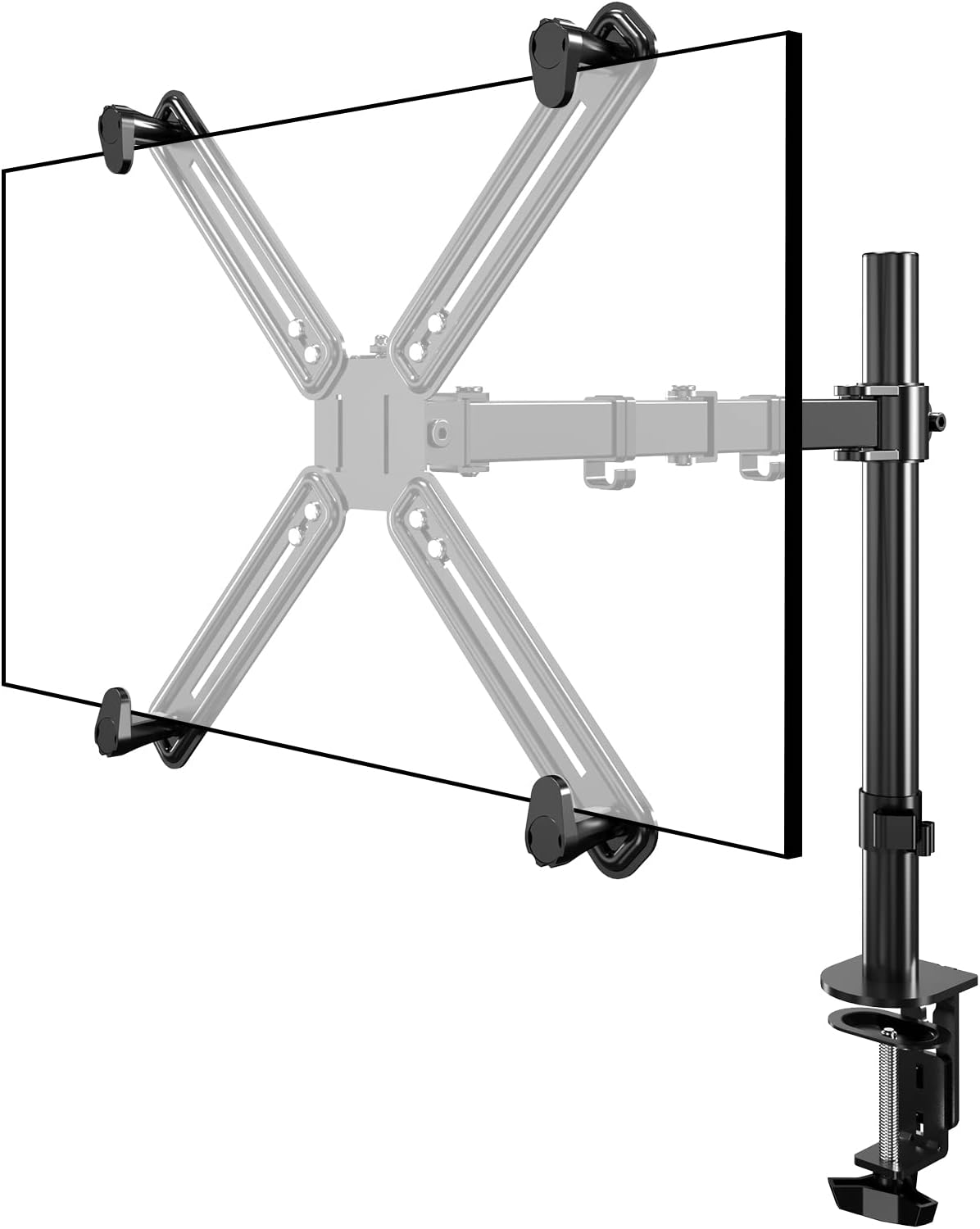 Non-VESA Single Monitor Arm Desk Mount | Desk mount, one screen, adapter brackets | See listing | See listing | Adapter brackets included | Monitors with no VESA holes |
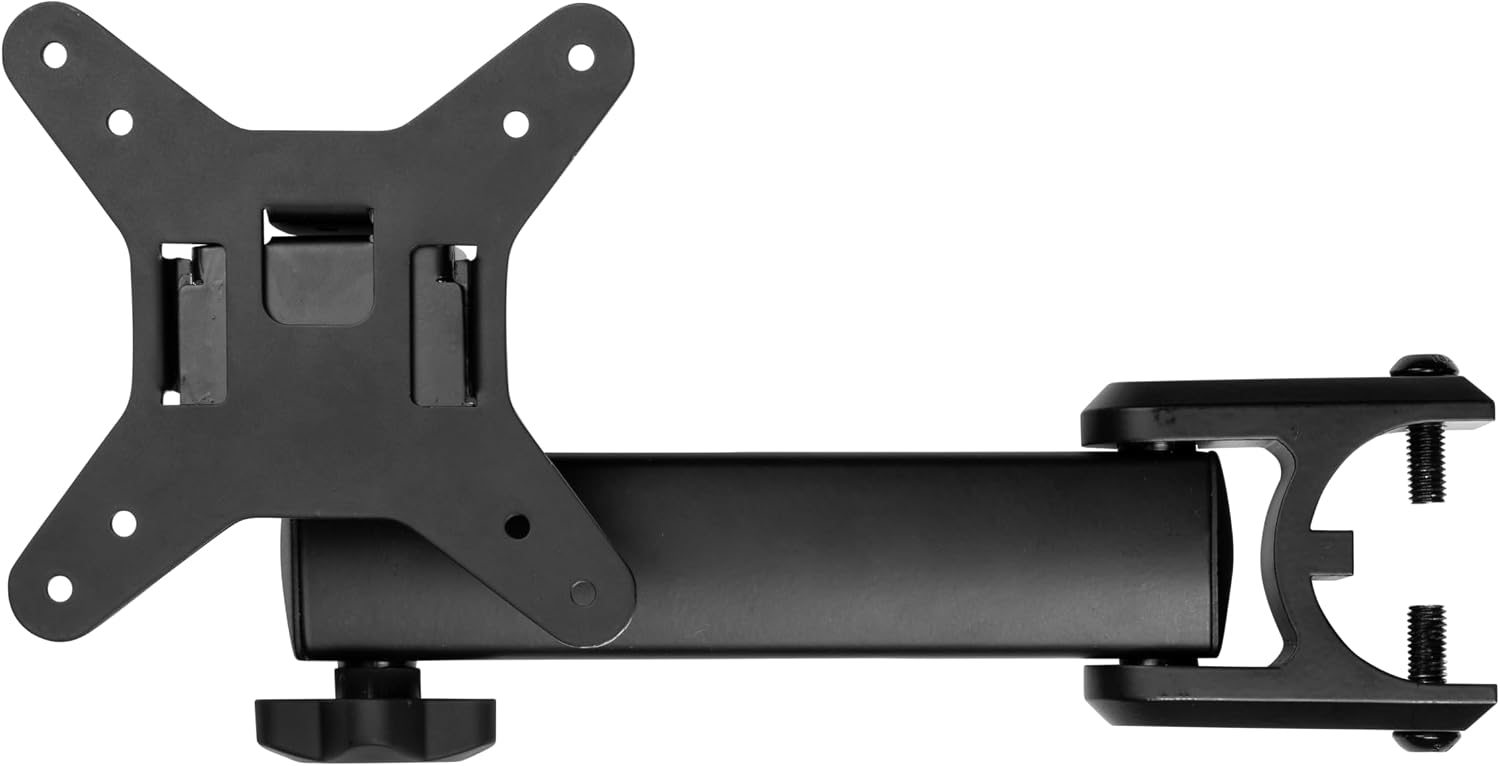 Gator Frameworks ID Series VESA Mount Extension Adapter Arm | Tree system extension arm | See listing | See listing | 75×75 / 100×100 | Adding a screen to a creator tree |
The table is a filter, not a verdict. Two arms can both fit your panel and still be wrong for your desk, which is why the desk width line matters as much as the screen range. Read the row that matches your panel count first, then check the edge.
Non-VESA monitors and the adapter bracket route
Some panels have no VESA holes at all. Older office monitors, a few all-in-ones, and panels built around a stand column give you nothing to bolt to. The Non-VESA Single Monitor Arm Desk Mount with VESA Adapter Brackets exists for exactly that monitor: the arm ships with brackets that grip the panel body and create the mounting point the screen does not have.
Two things to check before you go this route. The bracket adds a layer between the panel and the arm, so the screen ends up sitting further forward on the desk than a VESA-mounted panel would, and that changes how much arm travel you have left. And if your monitor already has VESA holes, skip this version entirely. You would be paying for brackets you will not use. Confirm the bracket fits your panel's body thickness, because it grips the body rather than bolting through it.
Extending a creator tree: the Gator Frameworks adapter arm
The Gator Frameworks ID Series VESA Mount Extension Adapter Arm is not a desk mount and it is not a replacement for one. It is an extension arm for the Content Creator Tree System, and it carries a 75×75 or 100×100 pattern at the end of it.
That makes it the right answer for one narrow situation: you already run a creator tree, you have a panel with a VESA pattern, and you want a third or fourth screen out on an arm without adding another base to the desk. Skip it if you do not own the tree system. It has nothing to attach to, and no clamp will fix that. Starting from zero, buy a desk mount instead.
Should you buy the Modernsolid Dual Monitor Arm Desk Mount for Two 17-32 Inch Screens?
Yes, if you edit on two screens, both panels fall between 17 and 32 inches, and your desk is at least 48 inches wide. One base, one clamp, and two panels at matched heights is the cleanest two-screen setup I install, and it keeps the desk surface clear for a keyboard, a color checker, and a notebook.
Skip it if you edit on a single screen, if either panel sits outside that size range, or if one screen needs to swing out for a client. Two single arms do that job better. And if your desk is under 48 inches wide, fix the desk before you buy the arm, because the arm is not the constraint there.
Should you buy the ErGear Single Monitor Arm for 13-36 Inch Screens, 22 lbs Capacity?
Yes. For one screen it is the value pick in this guide. The 13 to 36 inch range covers nearly every editing panel on a desk today, and 22 lbs of weight capacity gives you real margin on a 24 or 27 inch display. It lifts the monitor off the desk, it travels forward and back, and it does not ask you to drill a second hole in anything.
Skip it if your panel weighs more than 22 lbs or measures larger than 36 inches, and skip it if you want two screens on one base. Weigh your monitor before you order. That one number decides this purchase more than any review you will read.