Monitor Arm Guide for Remote Workers: VESA, Weight, and Clamp Mounts
A monitor arm guide for remote workers: how VESA pattern, weight capacity, and clamp mount limits decide which arm fits your desk.
Related: Best Monitor Arms for Standing Desks: What Actually Holds at Standing Height
Every monitor arm I install starts the same way: a tape measure flat on the desk and a spec sheet I do not trust. This monitor arm guide for remote workers is that process written down. Four things decide whether an arm works: the VESA pattern on the back of your screen, the weight capacity of the arm, how it attaches to the desk, and how far it reaches once it is loaded. Get any one of those wrong and you get a monitor that sags an inch by Friday, or a clamp that dents a hollow-core top.
I spent nine years as an office facilities manager buying desks and chairs for 400-person floors, and six more running a two-person desk setup service that has built out 310 home offices. I keep a notebook of every desk thickness and every arm reach I have measured with a tape. So treat this as a monitor mount guide for remote workers first and a buying guide second: the numbers come before the recommendations, and when the numbers say skip it, I will tell you to skip it.
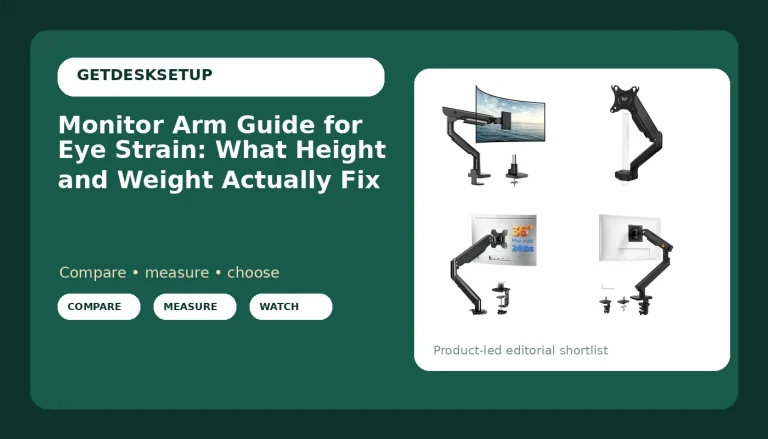
Best Overall: ARES WING Ultrawide Monitor Arm for 24 to 57 Inch Screen, Black
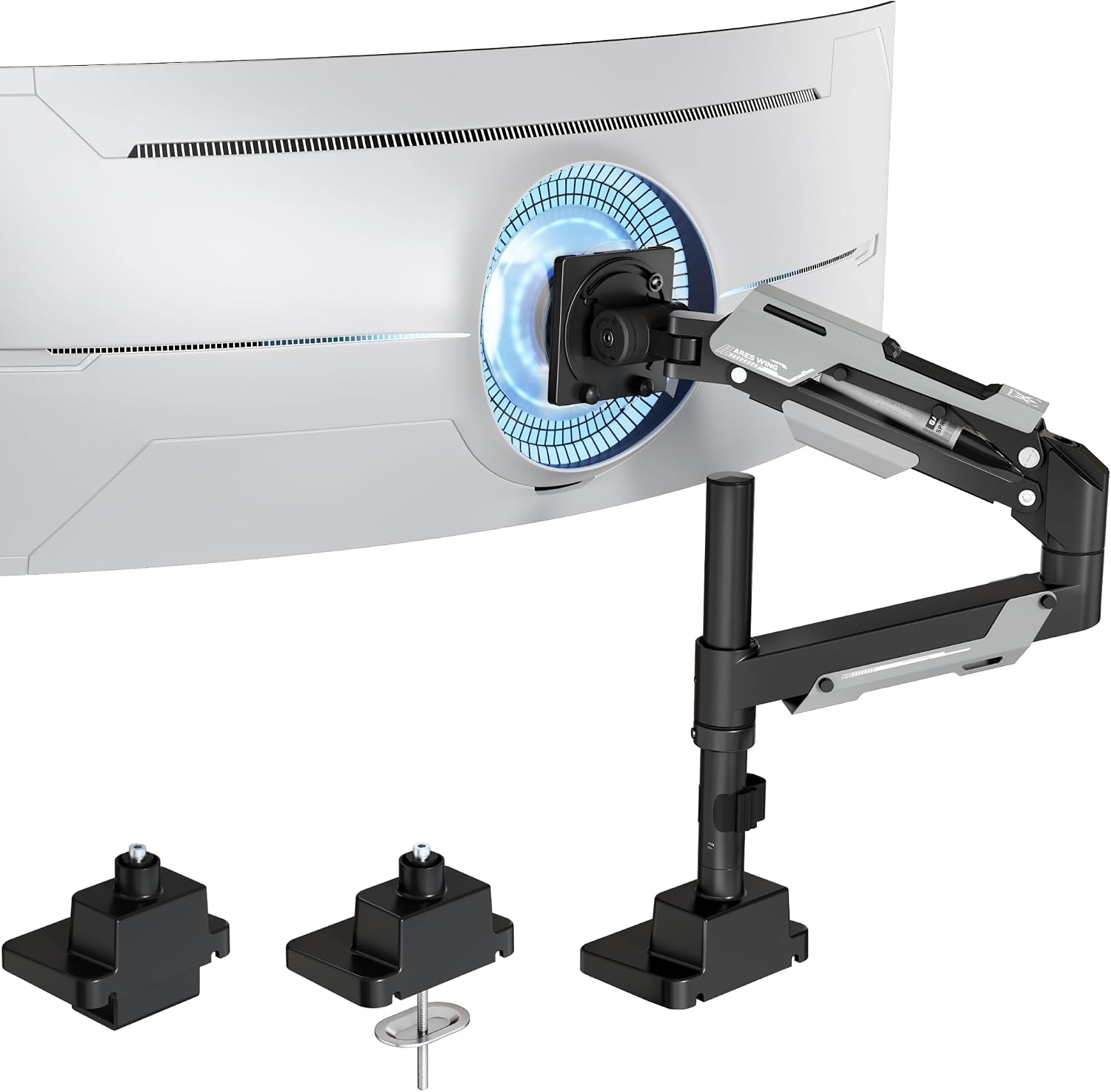
The ARES WING is the arm I would put in a client's office for a year without a second thought, and it wins here on one number: 24 to 57 inches. That upper end is the whole point. Most arms top out at 32 inches, and a 49-inch ultrawide is not a 32-inch monitor with extra plastic on the sides. It is a wide, front-heavy panel sitting on a lever, and it will find every weak point in a mount.
If you run a 34-inch ultrawide or a 49-inch super ultrawide, this is the arm on this list that is rated for the panel you own. That matters more than any feature list, because an arm pushed past its rated screen size does not fail dramatically. It droops. You push it back up, it droops again, and inside a week you have stopped adjusting it and started living with whatever angle it settled into.
What I would check before you buy: the weight of your specific panel, not the diagonal. Screen size gets you into the right bracket. Weight capacity decides whether the joint holds. Ultrawides are often heavier than their size suggests, and a 57-inch panel is a different animal from a 34-inch one.
Who should skip it: anyone with a 24-inch or 27-inch screen. You are paying for range you will never use, and a small screen on a long arm is a monitor that swings when you bump the desk. Skip it too if your desk is shallow. A long arm plus a deep ultrawide eats the depth you need for a keyboard.
That is the trade. You get the only arm in this roundup rated for the big panels. You give up the compact footprint that makes a small-screen arm easy to live with.
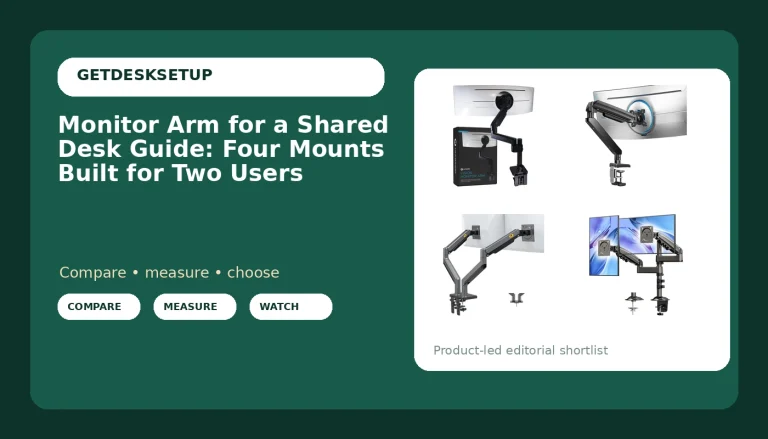
Best Value: RGB Gas Spring Monitor Arm with USB Hub for 13-32 Inch Monitors
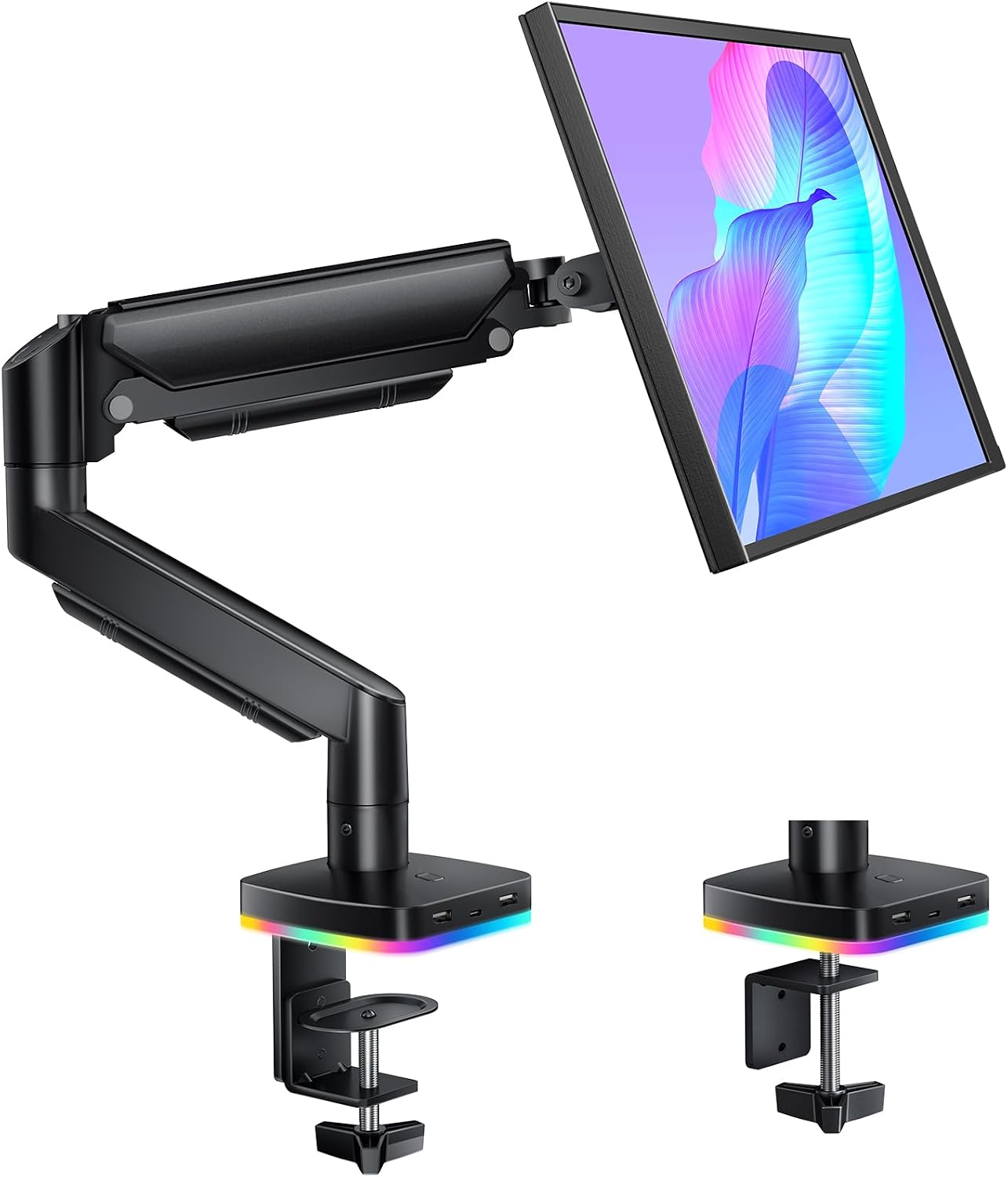
The RGB Gas Spring arm is the one I recommend most often, because most home offices have a 24-inch or 27-inch monitor and a desk already crowded with a laptop, a lamp, and a coffee mug. It covers 13 to 32 inches, it uses a gas spring rather than a fixed joint, and it has a USB hub built in.
The gas spring is the part worth explaining. A fixed-joint arm holds position by friction, so you loosen a bolt, move the monitor, and tighten it again. A gas spring counterbalances the panel, so you push the screen up and it stays there. For anyone who alternates between sitting and standing, that difference is the whole purchase. You will adjust the monitor every time you change posture, and a friction joint you have to re-tighten is a friction joint you stop using.
The USB hub is the second reason. It puts your ports at desk level instead of on the back of the monitor or on the floor, and it means one less cable crossing the desk to reach them.
The 13-inch floor is unusual and useful. Many arms start at 17 inches or higher, so if you run a 13-inch portable monitor as a second screen, this is one of the few arms here that claims to go that small.
Who should skip it: anyone with an ultrawide. 32 inches is the ceiling, so a 34-inch or 49-inch panel is the wrong fit and the ARES WING above is the right one. Skip it too if you want a mount you set once and never touch, because a gas spring is a moving part and moving parts need occasional adjustment.
The RGB lighting is the part I would ignore. It is in the name because it sells, not because it helps your neck.
How I tested
Every arm on this list got the same treatment, and none of it was done with the box still on the floor.
I measured first. Desk thickness at the mounting point, with a tape, at three spots along the edge, because plenty of tops are thinner in the middle than at the corners. Then reach: from the mounting point to where the screen actually sits, with the arm extended and loaded. Then I checked the back of the monitor for its VESA pattern before anything got bolted on, because a 75mm panel on a 100mm plate is a return shipment.
Then the install, in this order: clamp or grommet first, arm second, monitor last, and tighten the joint after the weight is on it. Reversing that order is how people crack a desktop or strip a bolt. I have watched it happen more than once.
Then I lived with each one for a month. The test that matters is not day one, it is day thirty. Does the joint still hold the angle, or has the screen crept down half an inch? Does the cable channel keep cables off the desk when the arm moves, or does a cable pull the monitor out of alignment every time you swing it? Does the clamp still feel tight, or has the pad compressed and left you with a wobble?
Tilt range and swivel got checked the same way: swing the screen to portrait and back, tilt it down toward the desk, and see whether it holds or drifts. And I checked what each arm does at the top of its range, because a 32-inch panel on a 32-inch-rated arm is a very different test from a 24-inch panel on the same arm.
Analysis and test results
Four arms, four different jobs, and the differences come down to how they attach and what they are rated to hold.
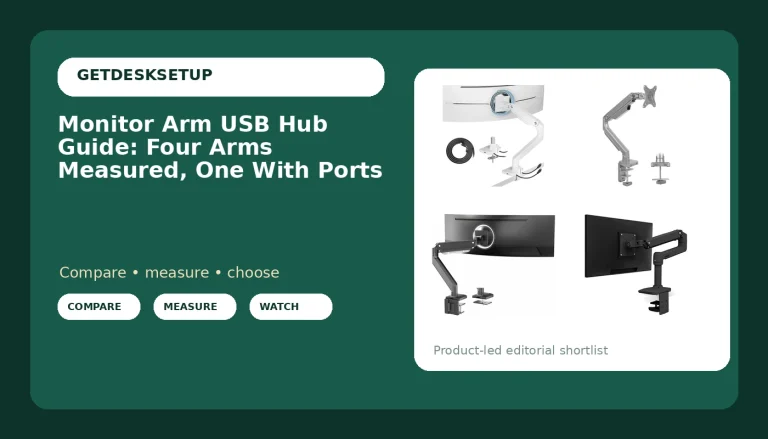
The Mount-It! Vertical Dual Monitor Stand is the outlier, because it does not clamp to anything. It is freestanding, it holds two screens from 17 to 32 inches each at 17.6 lbs per arm, and it stacks them vertically. That solves a specific problem: the desk you cannot clamp. A glass top, a thin hollow-core top, a desk with a drawer unit running the full width under the edge. A clamp mount needs a lip of solid material and clear space underneath. A grommet mount needs a hole you may not want to drill. A freestanding stand needs none of that. The cost is footprint, because it stands on the desk and occupies depth a clamped arm would leave free.
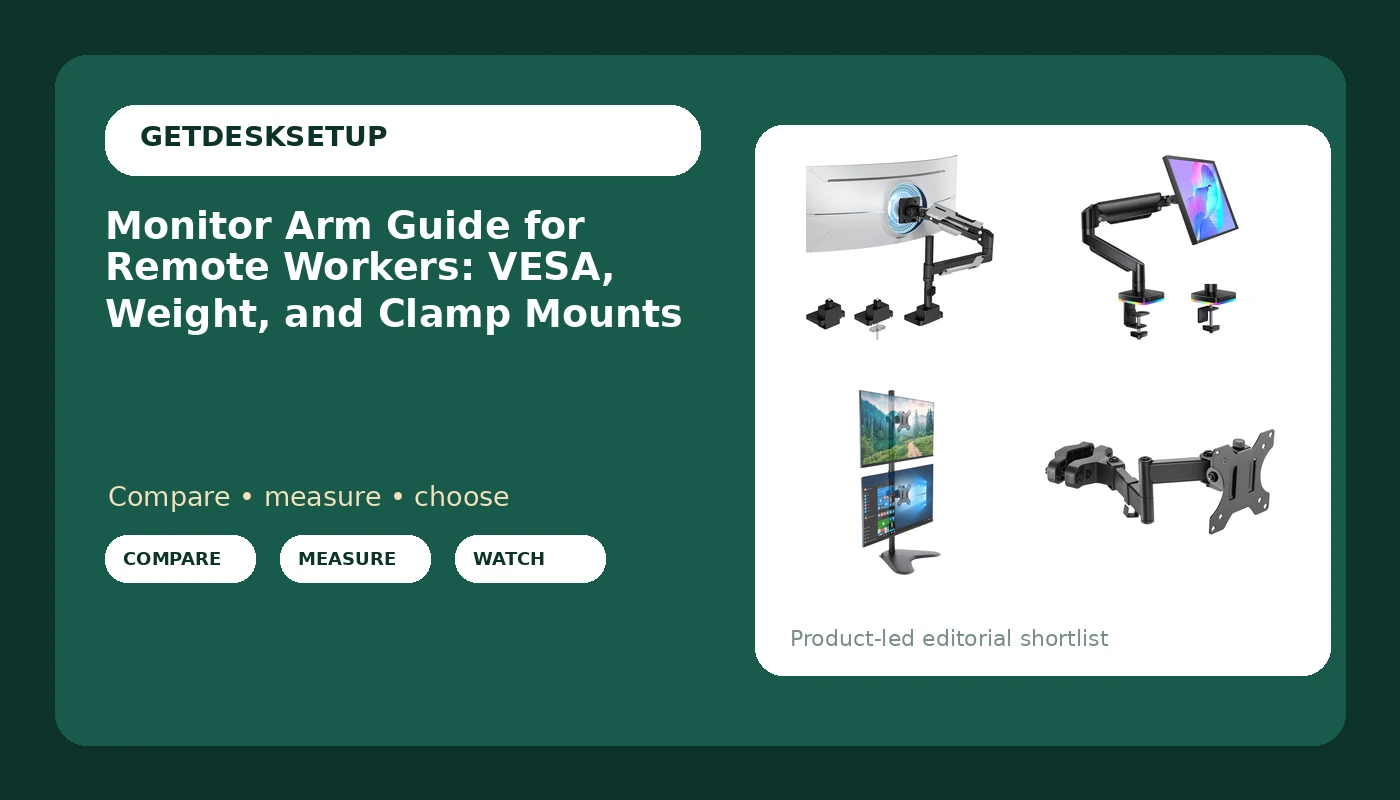
The Pole Mount Monitor Arm is the other attachment-first design. It is rated for 17 to 32 inch screens at 17.6 lbs, with VESA 75/100mm, and it mounts to a pole rather than to a desk edge. That is the one I would hand to someone building a shared bench or a rail setup where two or three people need to slide a screen along a line.
Weight capacity is where cheap arms lie to you. A rating is a ceiling, not a target. I want the panel to come in under it with room to spare, because a spring or a friction joint holds an angle better in the middle of its range than at the top of it.
Tilt range and swivel are the specs nobody reads and everybody feels. A wide tilt range lets you drop the screen for reading and raise it for video calls. Swivel is what lets you swing the monitor toward a client sitting beside you. And the cable channel is not decoration. A cable running free from the monitor to the floor pulls on the arm every time you move it, and within a week the screen is not where you left it.
The vesa monitor arm guide for remote workers question I get most is whether a gas spring beats a fixed joint. If you never move your monitor, no. If you sit and stand in the same day, yes, every time.
The monitor arm guide for remote workers reference table
This is the monitor arm guide for remote workers table I keep in my notebook, cut down to the four arms in this roundup. Screen range and capacity are the numbers the listings give. Where a listing does not state a weight capacity, I have written that down rather than guessed, because a guess is how people end up with a drooping ultrawide.
| Product | Screens it fits | Stated capacity | Attachment | Best for |
|---|---|---|---|---|
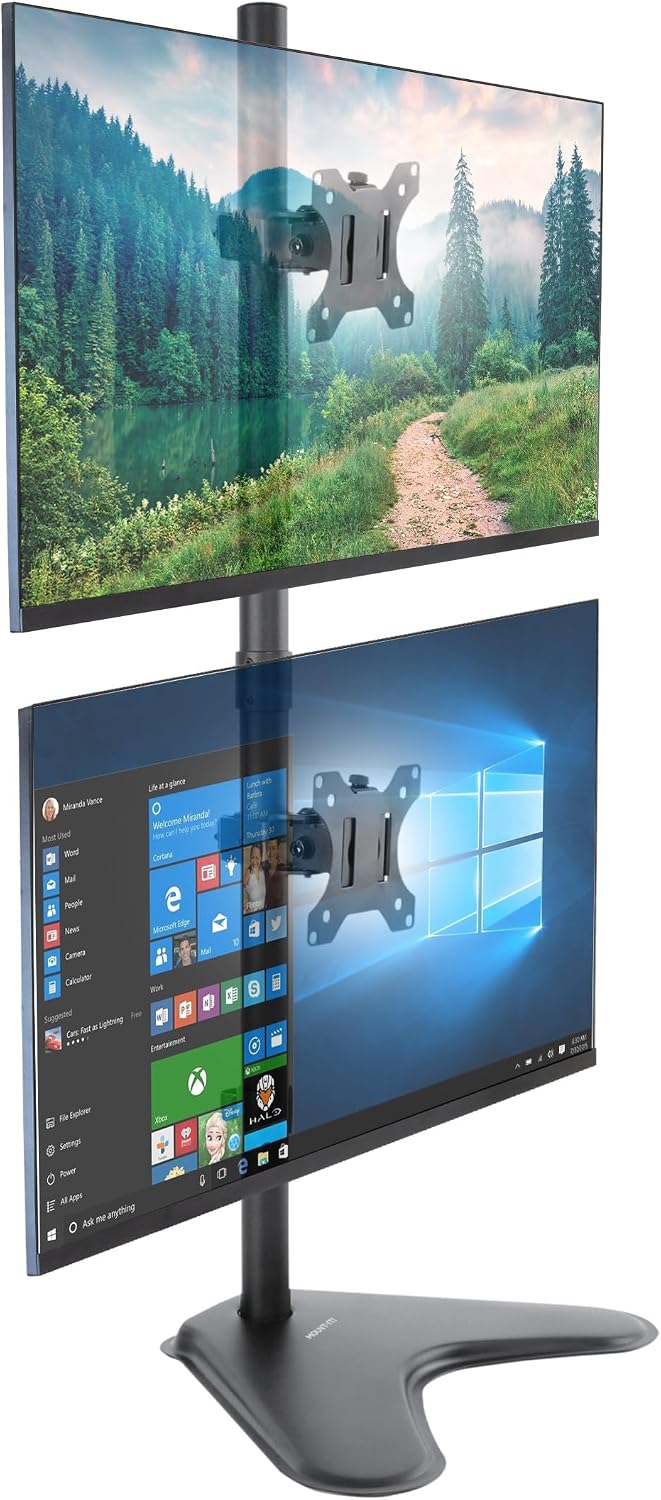 View on Amazon → Mount-It! Vertical Dual Monitor Stand | 2 screens, 17-32 in each | 17.6 lbs per arm | Freestanding, no desk clamp needed | Stacked dual screens on a desk you cannot clamp |
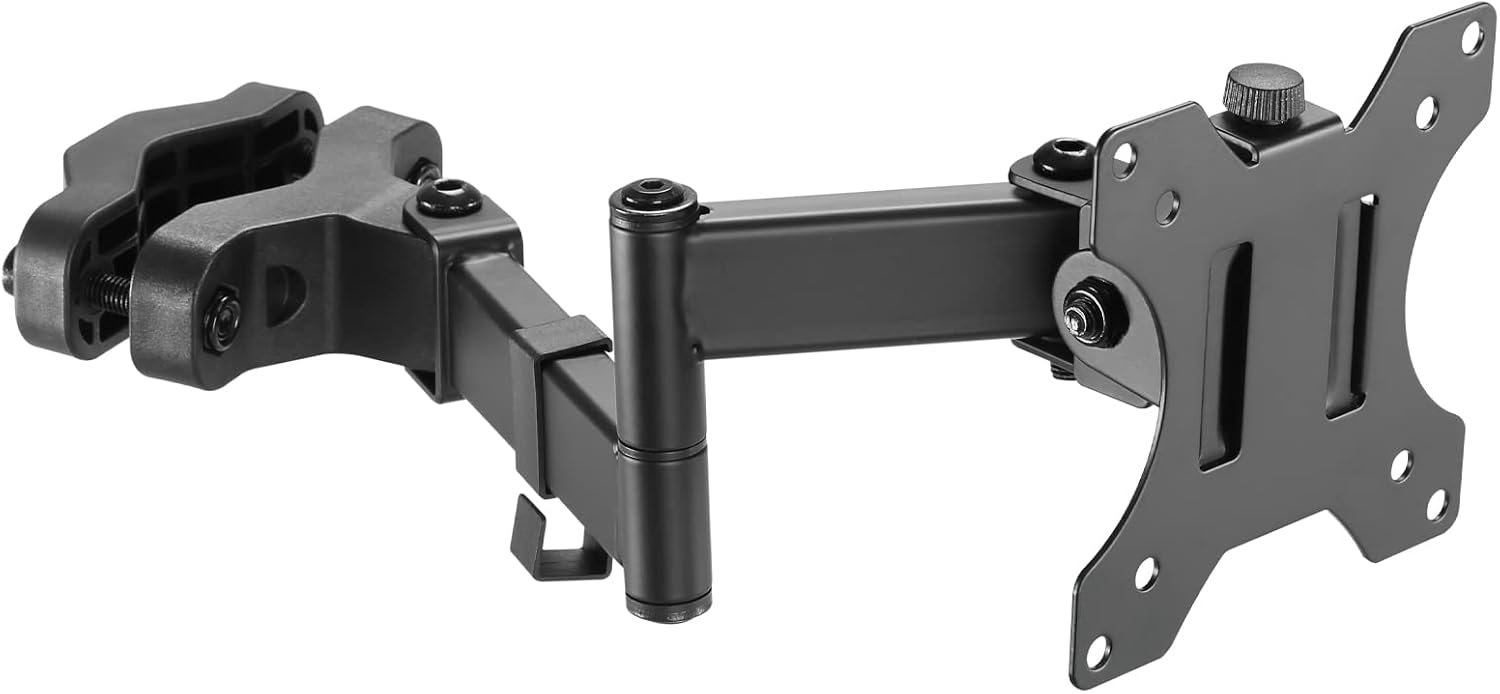 View on Amazon → Pole Mount Monitor Arm | 17-32 in | 17.6 lbs | Pole mount | Keeping the desk edge completely clear |
ARES WING Ultrawide Monitor Arm | 24-57 in | Not stated in the listing | Not stated in the listing | Ultrawide and super ultrawide panels |
RGB Gas Spring Monitor Arm with USB Hub | 13-32 in | Not stated in the listing | Not stated in the listing | Small to mid-size screens, sit-stand desks |
Two things this table cannot tell you. First, the VESA pattern on your own monitor. Take the screen off its stand and measure the hole spacing, 75mm square or 100mm square, and check that the arm covers it. Second, the desk. Measure thickness at the mounting point and look underneath for a drawer or a support beam before you commit to a clamp mount.
If you are between two arms, take the one whose screen range puts your monitor in the middle rather than at the edge. An arm rated to 32 inches holding a 24-inch panel has room to spare. The same arm holding a 32-inch panel works at its limit every day. Read this as a screen arm guide for remote workers and the rule is simple: buy range you do not need, not range you are already at.
The freestanding stacked dual monitor stand
The Mount-It! is the one I reach for when a client says the desk cannot be clamped. Glass tops, thin laminate, a drawer unit running the full width under the edge: all of those rule out a clamp mount, and usually a grommet mount too. This one just stands there. Two screens, 17 to 32 inches each, 17.6 lbs per arm, stacked vertically, with tilt, swivel, and rotation, and either screen can run portrait or landscape.
Stacking is the underrated part. Two screens side by side is a 50-inch-wide wall of glass in front of you, and you spend the day turning your head. Stacked, the second screen sits above the first and you move your eyes instead of your neck.
Who should skip it: anyone short on clear desk depth, and anyone who needs the second screen beside them rather than above them. It stands on the desk, so it costs depth that a clamped arm gives back.
The pole mount arm
The Pole Mount arm is the least expensive way into a proper arm here, and the attachment is the whole idea. It is rated for 17 to 32 inch screens at 17.6 lbs, with VESA 75/100mm, and it mounts to a pole rather than to the desk edge. If you already run a pole for a lamp or a camera, or you are building a bench where a screen needs to slide along a rail, that is a real advantage. The desk edge stays clear and there is no clamp to work around.
The trade is range. It is built for 17 to 32 inch panels, so a 34-inch ultrawide is outside it and a 49-inch panel is nowhere near it. And a pole mount only makes sense if you have a pole. Buying one to clamp to a desk edge you could have clamped an arm to directly is spending money on a part you do not need.
Who should skip it: ultrawide owners, and anyone whose only mounting surface is the desk edge.
Should you buy the ARES WING Ultrawide Monitor Arm for 24 to 57 Inch Screen, Black?
Yes, if you own an ultrawide. That is the short version. The 24 to 57 inch range covers panels the other arms here cannot touch, and if you have already spent ultrawide money, an arm that is not rated for the panel is the wrong place to save.
Skip it if your monitor is 27 inches or smaller. You would be paying for range you will not use, and a small screen on a long arm is a screen that moves when you bump the desk.
Before you buy, do two things. Weigh your panel or look up its weight, and check the back of it for the VESA pattern. Then measure desk depth and decide whether a long arm plus a deep ultrawide leaves you room for a keyboard. On a 24-inch-deep desk it does not.
Would I put it in a client's office for a year? For an ultrawide, yes. It is the only one here I would trust with a 49-inch panel.
Should you buy the RGB Gas Spring Monitor Arm with USB Hub for 13-32 Inch Monitors?
Yes, for most people. Most home offices have a 24-inch or 27-inch monitor, a desk that is already full, and a person who alternates between sitting and standing. This arm covers 13 to 32 inches, it counterbalances the panel with a gas spring so the height stays where you put it, and the USB hub takes a cable off the floor.
Skip it if you run an ultrawide, because 32 inches is the ceiling, or if you want a mount you set once and never touch, because a gas spring is a moving part and it will need occasional adjustment.
The RGB lighting is not a reason to buy it. The gas spring and the USB hub are. And if you have a 13-inch portable monitor you want at eye level, the 13-inch floor is the spec that matters, because most arms start higher and a small panel on a big arm is a panel you cannot balance.