Eye strain at a desk is usually a geometry problem before it is a hardware problem. The distance from your eyes to the screen, the height of the top bezel, the angle of the panel, and how long you hold one position all feed into what clinicians call computer vision syndrome, or digital eye strain. A monitor arm and computer vision syndrome are linked because the arm is the part of the setup that lets you change those numbers without rebuilding the desk. If you have been told to move your screen back, raise it, or tilt it down, the arm is the tool that makes those instructions repeatable instead of a one-time adjustment you undo by lunch. This guide covers the adjustment ranges that matter, four arms worth considering, and who should skip each one.
Related: Standing Desk Height and Monitor Eye Level →
Quick answer
A monitor arm does not treat computer vision syndrome. It changes viewing distance, screen height, tilt, and swivel, which are four of the variables eye care guidance points to when screen work causes strain. The right arm is the one whose screen size range, weight capacity, and mounting style match your monitor and your desk. Start by measuring your desk depth and your monitor's weight, then check the VESA pattern on the back of the panel before you order anything. If symptoms continue after you set the screen roughly an arm's length away with the top of the panel near or slightly below eye level, that is a conversation with an eye care professional, not a shopping decision.
Four useful options
| Model | Best fit | What stands out |
|---|---|---|
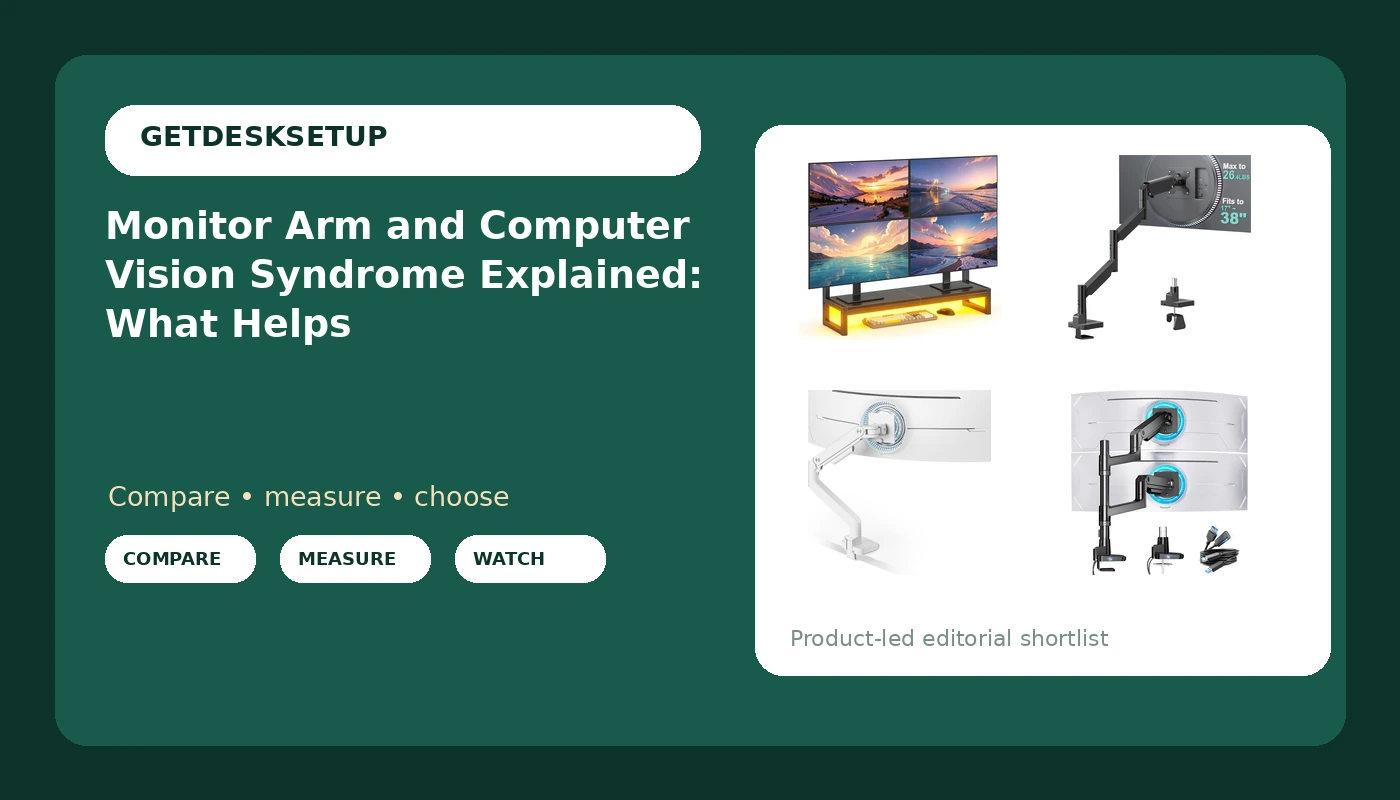
| YAOHUOO Computer Monitor Mount Arm with LED | Small desks and single-screen setups that want storage | C-clamp base, built-in shelf, LED |
| WALI Extra Long Single Monitor Arm | Deep desks and screens that need long reach | Extra long arm, 17 to 38 inch screens, up to 26.4 lbs |
| ARES WING Ultrawide Monitor Arm, White | Ultrawide and heavier panels | 17 to 49 inch range, 44 lbs capacity, white finish |
| ARES WING Stacked Dual Vertical Monitor Arm with USB A/C | Two-screen stacked setups | Vertical stacking, USB A/C ports, 17 to 49 inch range |
Budget clamp mount: YAOHUOO Computer Monitor Mount Arm with LED
The clamp mount is the detail to check first. A C-clamp needs a square desk edge with enough flat material for the jaws to bite, and it needs clearance underneath so the screw can turn. If your desktop has a beveled edge, a thick apron, or a glass top, a clamp is the wrong answer and a grommet mount through an existing cable hole is the safer route. This listing name does not state a weight capacity, so compare your monitor's actual weight against the listing before ordering rather than assuming it will hold a large panel. The shelf is the trade: it gives you a place for a keyboard or a notebook, but it also adds depth in front of you, so measure that against your keyboard position.
Extra long reach: WALI Extra Long Single Monitor Arm
Viewing distance is the variable most people get wrong, because a monitor stand pins the screen at whatever depth the desk happens to allow. A long arm gives you the range to set the panel near arm's length, then fine-tune from there. The practical check is clearance: measure your desk depth, then add the wall or window behind it, because a long arm needs room to fold back when you are not using the screen at full extension. The stated 26.4 lb capacity and the 17 to 38 inch screen range set the ceiling. If you own a 43 inch ultrawide or a heavy panel, this is not the arm for you.
Ultrawide and heavy panels: ARES WING Ultrawide Monitor Arm, White
Big panels fail on arms in a specific way: the joint holds the weight at first, then the tilt drifts as the load sits on it. That is why weight capacity and tilt range matter more than the shape of the arm. A 49 inch screen is at the top of this arm's stated range, so check your panel's shipping weight and the VESA pattern on the back before you commit. If your monitor uses a 75 by 75 mm pattern on a large panel, confirm the included plate supports it. The white finish is cosmetic, but it does matter on a light wood or white desk where a black arm is the loudest object in the room. Anyone with a panel heavier than the stated capacity should skip this one and look for a heavier-duty mount.
Stacked two-screen setup: ARES WING Stacked Dual Vertical Monitor Arm with USB A/C
Here is the honest trade. Stacking solves the problem of two wide panels that will not fit side by side, and the USB ports keep a phone and a headset off the desk. It also puts the upper display high, and a screen whose center sits well above eye level asks you to look up for long stretches. That is the opposite of what most eye strain guidance suggests for a single primary screen. The people who get along with a stacked setup are usually those who keep reference material on the top panel and only glance at it. If your neck already complains by mid-afternoon, this is the one to skip. Check the combined weight of both monitors against the listing before ordering, and make sure the clamp or grommet mount fits your desk thickness.
Prices and availability may change. Product images, names, and retailer links are matched to verified listings. No current price, rating, stock status, or measured result is stated here without current evidence.
What computer vision syndrome actually is
Computer vision syndrome, often called digital eye strain, is the cluster of symptoms that shows up after extended screen work: burning or tired eyes, dry eyes, blurry vision that clears when you look away, headaches, and soreness in the neck and shoulders. It is not a single disease and it is not caused by any one brand of hardware. It is the result of sustained near focus combined with a viewing position that your body holds without support.
Several factors stack up. Blink rate drops during concentrated screen work, which leaves the eye surface drier. The eye holds a fixed focal distance for hours, which fatigues the focusing muscle. Glare and contrast mismatches between the screen and the room force the pupil to work harder. And posture matters more than most people expect, because a screen that is too low pulls the head forward, and a screen that is too high tips it back. Both positions load the neck, and neck tension is one of the most common complaints in the same cluster as eye strain.
The monitor mount and computer vision syndrome conversation exists because position is one of the few variables you can control cheaply. You cannot change your tear film with a shopping cart, and you should not try. What you can change is where the screen sits relative to your eyes and how far away it is. That is the entire case for an adjustable arm, and it is a modest case, not a medical one. Symptoms that persist, worsen, or come with pain should go to an eye care professional.
How a monitor arm and computer vision syndrome connect
The monitor arm and computer vision syndrome explained point is simple: the arm buys you adjustability. A fixed stand gives you one screen position, decided by the manufacturer, and a stack of books under it if you need more height. An arm gives you a range on four axes, and range is what lets you match the screen to your body instead of the reverse. If you have read about a vesa monitor arm and computer vision syndrome, the mechanism being described is almost always this same one, adjustment range rather than any special property of the hardware.
The adjustments that matter, in the order worth setting:
- Distance first. Set the panel roughly an arm's length from your eyes, then adjust to what your eye care professional recommends. Reach is the spec that decides whether you can do this on a deep desk.
- Height second. The top of the panel should sit near or slightly below eye level for a single primary screen. Arms with a tall mast or a stacked design push that number up.
- Tilt third. Angle the panel slightly back so it faces your eyes square on. The tilt range on a joint has to hold under the weight of the panel, not just move when you push it.
- Swivel fourth. For a second screen, swivel lets you angle it inward without moving the base. This is where a dual or stacked arm earns its cost.
- Cables last. Route them through the cable channel and leave slack at the joint. A cable that pulls tight changes the monitor angle within a week, which undoes everything above it.
One more term worth knowing before you buy: a gas spring arm uses internal pressure to counterbalance the screen, which makes height changes easier with one hand. A plain friction arm needs a hex key to retune after a big height change. Neither is automatically better, but the difference shows up every day you raise the screen.
Practical guidance for arm owners
- Measure before you order: desk depth, monitor weight, and the VESA pattern on the back of the panel. A 100 by 100 mm pattern is common on larger screens, and small panels sometimes use 75 by 75 mm.
- Match the mounting style to the desk. A clamp mount needs a square, solid edge with clearance below. A grommet mount needs a hole in the desktop, which many standing desks already have.
- Respect the stated weight capacity with margin. If a monitor is close to the limit, the tilt joint will drift, and you will retighten it monthly.
- Check the height range against your seated eye level, not against the desk. A short mast on a tall person is a screen that sits too low no matter how much you tighten it.
- Retune after any move. The screen arm and computer vision syndrome relationship is about position, so a screen that shifted when you cleaned the desk is a screen that needs five minutes of resetting.
Which option should you choose?
Choose the YAOHUOO Computer Monitor Mount Arm with LED when you have a small desk, one monitor, a clampable edge, and you want the shelf and light more than you want maximum capacity. Choose the WALI Extra Long Single Monitor Arm when your desk is deep, your monitor is 17 to 38 inches and under the stated 26.4 lb limit, and reach is the thing you keep wishing you had. Choose the ARES WING Ultrawide Monitor Arm, White when you run a large curved panel inside the 17 to 49 inch range and the 44 lb limit, and you want the arm to disappear against a light desk. Choose the ARES WING Stacked Dual Vertical Monitor Arm with USB A/C when two wide screens will not fit side by side, you genuinely use the top panel as secondary, and you want the USB ports in the base.
The caveat is the same for all four. None of them is a treatment, none of them is measured here, and none of them carries a stated result about eye strain. They are mounting hardware with stated size and weight ranges. Your results depend on whether you actually set the distance, height, and tilt after installation, and on factors no arm touches, including room lighting, screen brightness, and how often you look away.
The bottom line
A monitor arm and computer vision syndrome relief are connected through one thing: adjustability you will actually use. The arm that helps is the one whose screen range, weight capacity, and mounting style fit your desk and your panel, so you can set distance and height once and stop fighting the setup. Measure your monitor and your desk first, pick the arm whose stated limits contain both, and treat the adjustment routine as the real product. If symptoms continue after the screen is positioned well, book the eye exam instead of buying a fifth mount.