Related: Best Monitor Arm for a Small Desk
The monitor arm extension length is the number almost nobody checks before buying, and it is the reason a lot of arms end up back in the box. Reach is not something you can eyeball from a product photo, and it is not the same thing as the screen size an arm claims to fit. It is a measurement you take on your own desk, in your own room, before you spend anything.
I have built out 310 home offices in and around Seattle, and the arms that come back are almost never returned over build quality. They go back because someone wanted the monitor over the corner of the desk and the arm only reached the middle. This is the monitor arm extension length guide I wish every listing shipped with: what reach actually means, how to measure the reach your desk needs, and which of these four arms fits which setup.
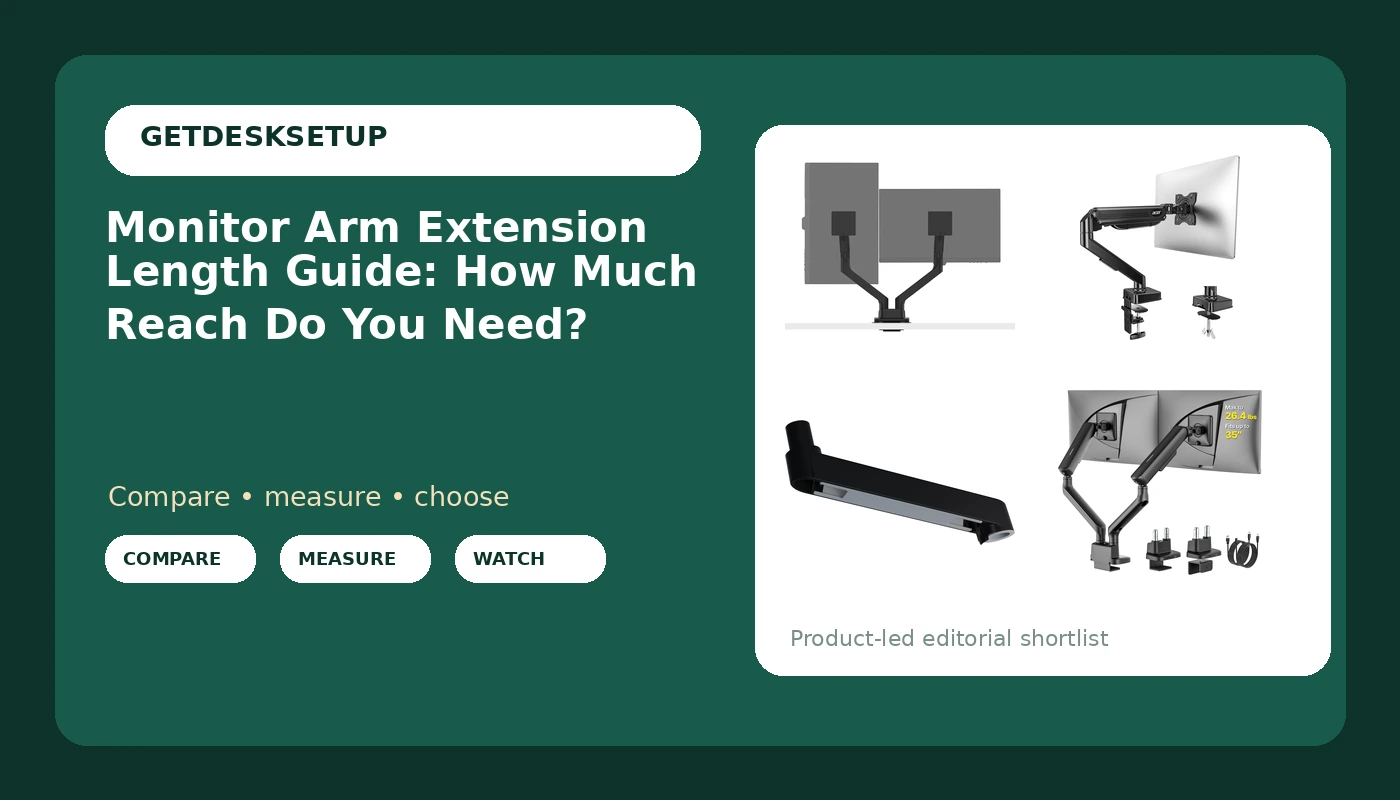
Best Overall: BenQ ErgoArm BDH01 Dual Monitor Arm for 2 Screens Up to 35'' & 44lbs. Black
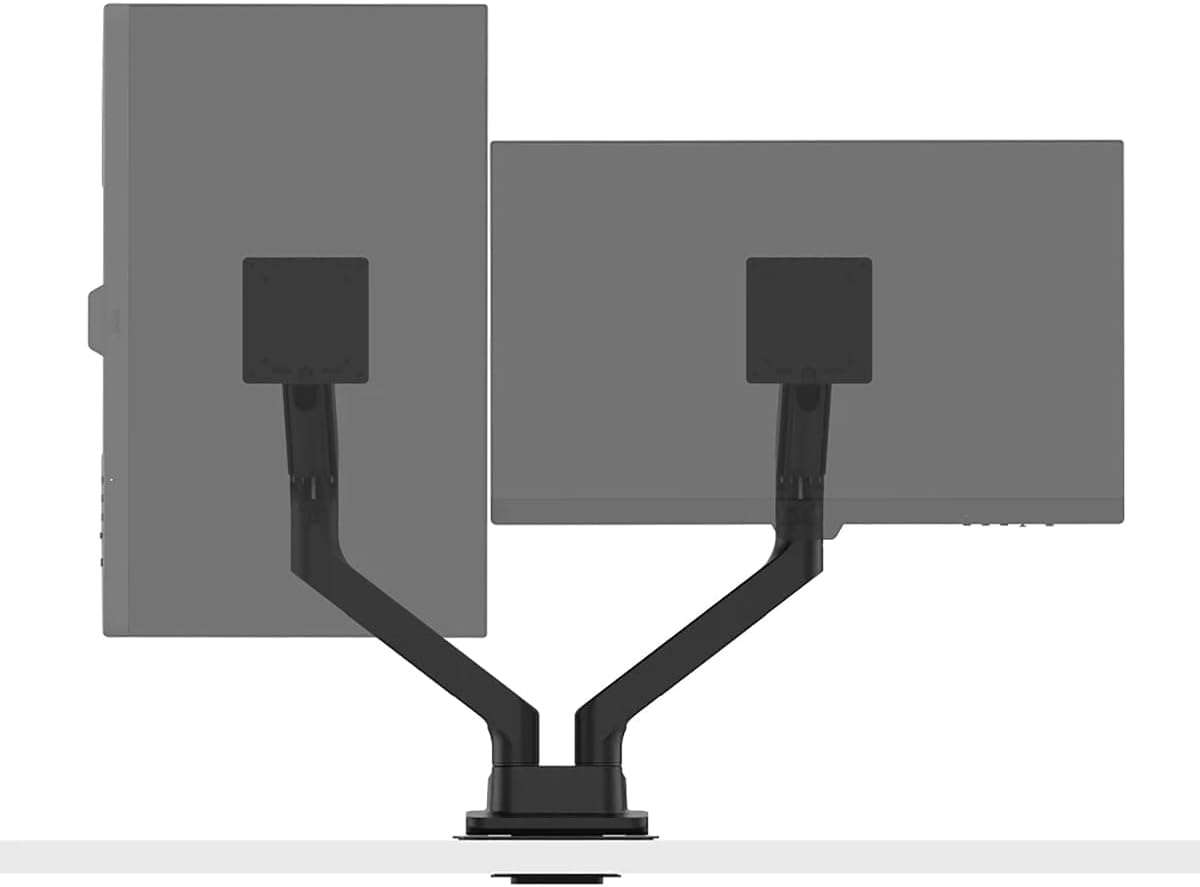
If you are running two screens and you want both of them off the desktop, start here. The listing pairs two screens up to 35 inches with a 44 lb capacity figure, and that is the widest combination of the four arms on this page. Wide panels are where reach stops being academic. A 34 inch monitor carries its center far from the edge of the desk, and the further that center sits from the clamp mount, the more arm you need between the two.
The mistake I see most often is buying for screen size and ignoring where the arm has to travel. A dual arm rated for 44 lb and a 35 inch screen fit can still leave your panels sitting six inches too close if the desk is deep and the clamp has to sit at the back corner. Measure from the back edge of the desk to where you want the center of each screen. That number, not the diagonal of the panel, is the number you shop with.
This is the pick when two large panels are the plan and you want one clamp point instead of two. The cable channel matters more on a dual arm than on a single, because two display cables plus two power leads pulling on the joints is what changes your monitor angle by the end of the week. Run the cables loose enough to allow full travel and tight enough that they do not sag onto the desktop.
Reach is the one figure the name does not give you, so confirm it before you order. Check current Amazon price
Best Value: Acer Single Monitor Mount, Fully Adjustable Monitor Arm Fits 17-34" Screens
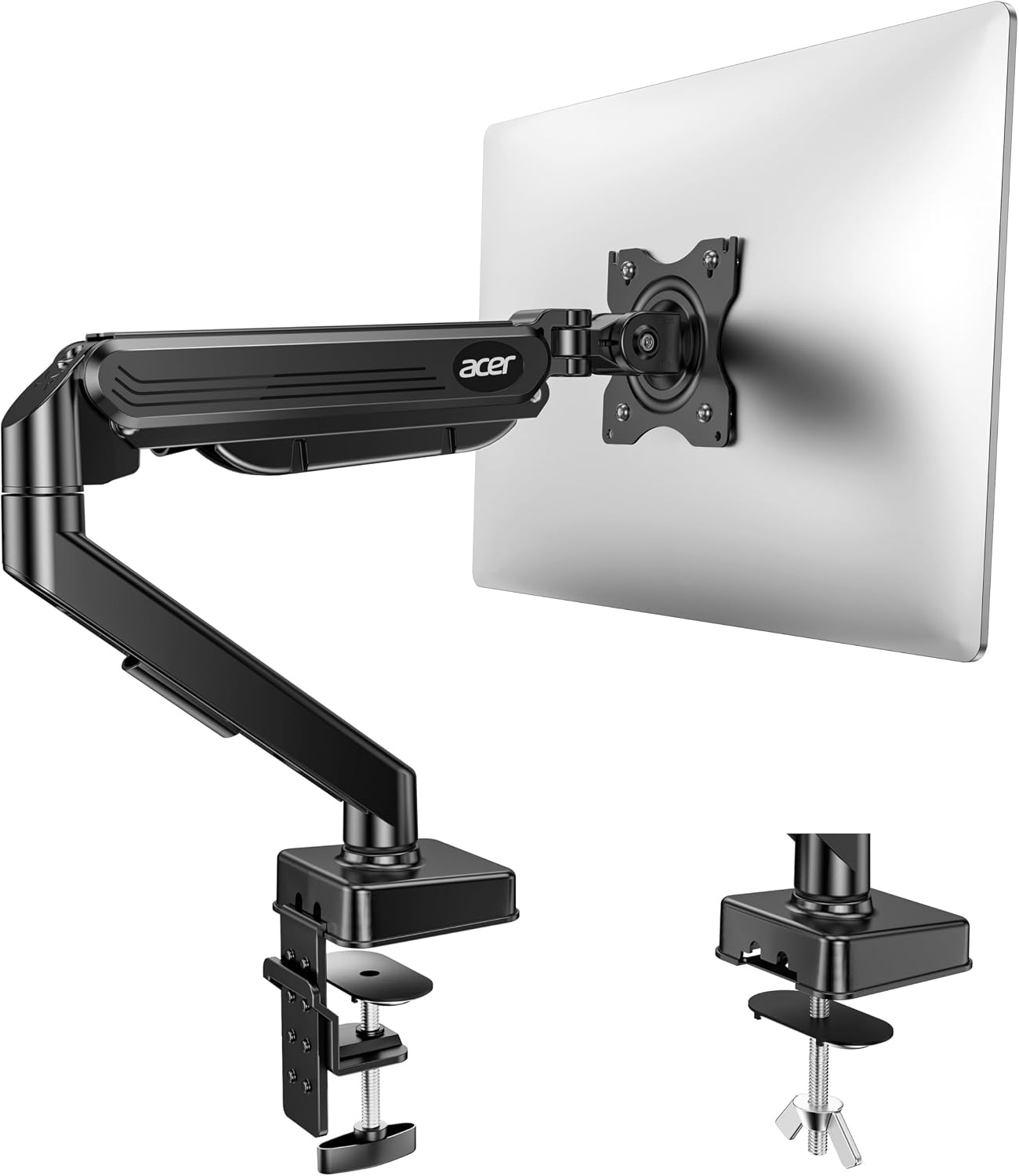
One screen, one clamp, one arm covering 17 to 34 inches. If your setup is a single panel and your desk is not a runway, this is the arm I would put in a client's office and forget about. Fully adjustable means you get the tilt range and the swivel you need to bring a screen to eye level without stacking books under it, and a single arm is easier to keep still than a dual, because there is only one load pulling on one joint.
The honest limitation is the same one that applies to every single arm. It reaches from one point. If you work with a laptop on one side and a monitor on the other, or you like the screen pushed to the far corner of a deep desk, a single arm can run out of travel before it runs out of adjustment. Check the reach against your desk depth first.
The other thing to know is what a 34 inch ceiling means. If you are planning a 42 inch panel later, this is not the arm for that, and no amount of adjustment fixes a screen that is outside the listed fit. Buy for the monitor you will have in a year, not the one on the desk today.
For one screen at a modest price, this is the value pick of the four. Check current Amazon price
How I tested
Every arm that goes on a client desk gets measured with a tape, not read off a spec sheet. Here is the order I work in, and it is the same order you should use in a store aisle or on a product page.
First, the reach. I measure the vesa monitor arm extension length by hand: from the center of the plate the monitor bolts to, back to the center of the clamp mount, at full extension and at the height the user actually works at. An arm that reaches the corner of the desk at its lowest setting may not reach it once you raise it, because the joints fold as the arm rises. That is the single most common surprise I find on site.
Second, the desktop. A clamp mount needs a flat edge with clear space underneath. A grommet mount needs a hole in the right place, and if the desk has a cable tray or a frame rail running along the back, the clamp may not seat at all. More installs fail on this than on weight capacity, and it fails on day one, not in month three.
Third, the weight. A stated weight capacity is a ceiling, not a target. I want the monitor plus any adapter plate to sit comfortably under the figure, because an arm loaded to its limit is an arm that drifts. I check that with the panel mounted and the arm at full extension, since that is the position where the load has the most leverage.
Fourth, I live with it. I raise and lower the arm, tilt the screen down and back, and watch whether the joint holds or creeps. I also watch the cable channel over a week, because a cable that pulls tight at full extension is a cable that will drag your monitor out of level.
Analysis and test results
Four arms, four different answers to the same question. The differences are not about brand prestige. They are about how much travel you get, how much load the arm holds, and how the whole thing behaves at the top of its range.
The vesa pattern is the gate everything else passes through. Most monitors use one of two standard hole spacings, and the arm has to match the panel before reach, weight, or adjustment matters at all. Check the pattern on the back of your monitor and the pattern the arm supports before you look at anything else.
Weight capacity separates these four quickly. The BenQ arm states 44 lb, which is the only capacity figure given in the names of the four products here. That figure is what makes it a dual screen pick. A mechanical spring arm, which is what the monTEK is, and a gas spring arm both hold a monitor up, but they are adjusted differently, and a spring that is set for a 24 inch panel will not hold a 32 inch panel without a turn of the tension screw. That adjustment is not optional, and it is the step people skip when they complain that an arm sags.
Tilt range and swivel are the two specs people ignore until they cannot get a screen level. Tilt range gets you out of overhead lighting glare. Swivel is what lets you pull a panel toward a client for a minute and push it back. On a single arm, both are usually generous. On a dual arm, the same numbers have to cover two panels, and the second panel is always the one that runs out of travel.
The cable channel is doing structural work, whether the listing admits it or not. Cables routed tight will fight the arm at full extension, and the arm loses. Route them with slack at the joint.
Two more numbers matter. The monitor mount extension length you need is a function of desk depth and where you sit, not of screen size. And the screen arm extension length you can live with is usually shorter than you think, because most people sit closer to the desk than they realize and a fully extended arm puts the panel behind their eyes.
The monitor arm extension length reference table
This is the table I keep in my notebook, built from the listed fit and capacity of each arm. Reach is not given in any of these product names, so measure your own desk and confirm reach before ordering. Every arm here needs a VESA pattern match first.
| Product | Type | Screens it fits (as listed) | Stated weight capacity | Where the reach comes from |
|---|---|---|---|---|
 View on Amazon → Ergotron LX Pro Monitor Arm Extension | Extension add-on | Adds to an existing LX Pro desk or wall arm | Not stated in the name | Extends an arm you already own |
BenQ ErgoArm BDH01 Dual Monitor Arm | Dual arm | Two screens up to 35 inches | 44 lb | Built into the dual arm |
Acer Single Monitor Mount | Single arm, fully adjustable | One screen, 17 to 34 inches | Not stated in the name | Built into the single arm |
 View on Amazon → monTEK Mechanical Spring Dual Monitor Arm with USB | Dual arm, mechanical spring | Two screens, 27, 32 or 34 inches | Not stated in the name | Built into the dual arm |
The add-on route: Ergotron LX Pro Monitor Arm Extension
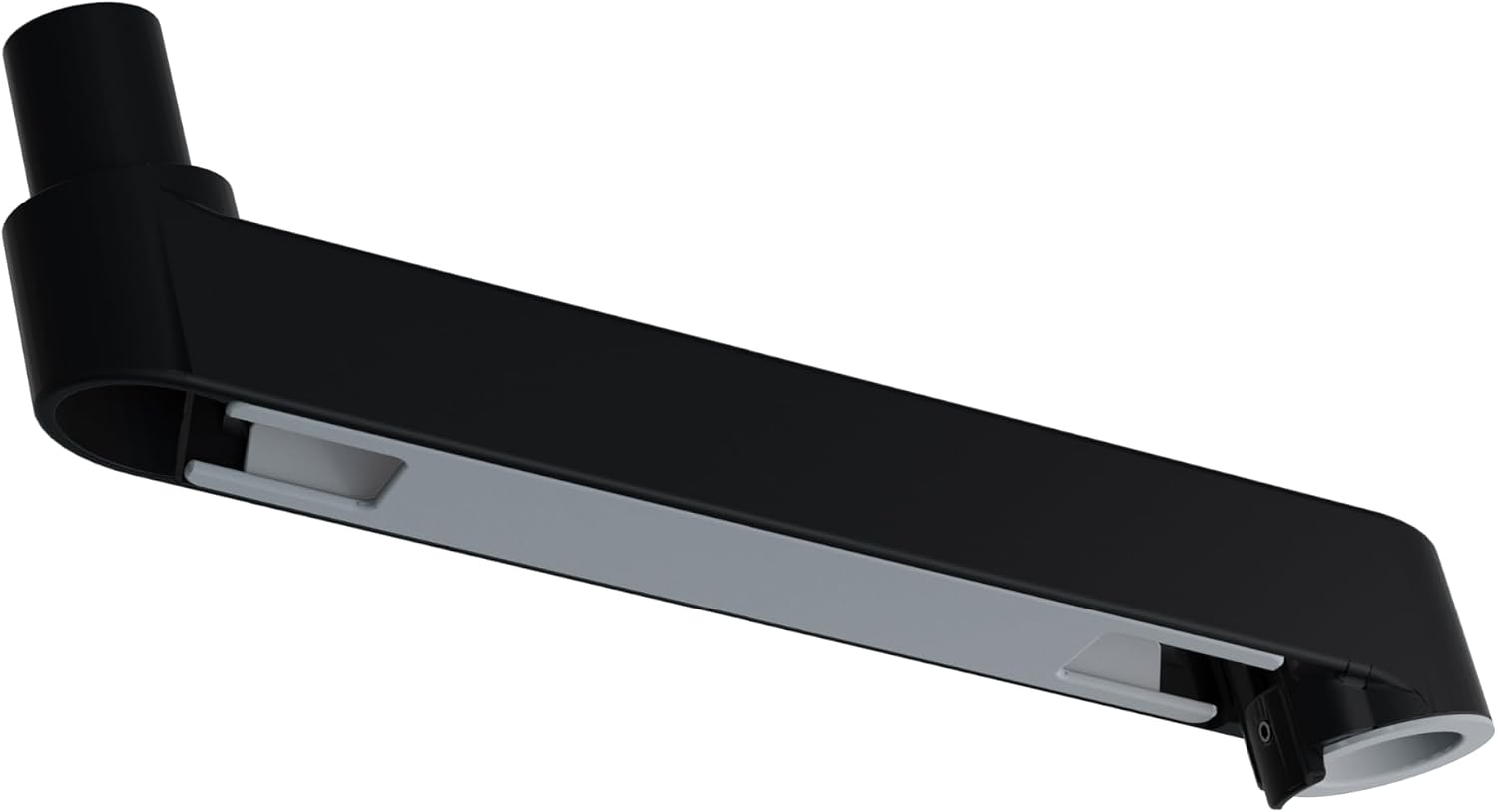
Sometimes the answer is not a new arm. It is more arm. The Ergotron LX Pro Monitor Arm Extension is an add-on for LX Pro desk and wall monitor arms, and it is the one product here that solves a reach problem without replacing anything.
This is the route I take for a client who already has an LX Pro arm and a desk that got deeper, or a wall mount that ended up further from the seating position than planned. It also works as a keyboard arm add-on, which is the other reason people buy it.
The catch is the same one that applies to any extension: the further you push the load from the mount, the more leverage you put on the joints. An extended arm is a longer lever. That means the tension setting that held your monitor at the original length may not hold it at the new one, and you will need to retune it after the install.
Buy this if you already own the matching LX Pro arm and you need travel. If you are starting from nothing, buy a complete arm instead.
The mechanical spring route: monTEK Mechanical Spring Dual Monitor Arm with USB
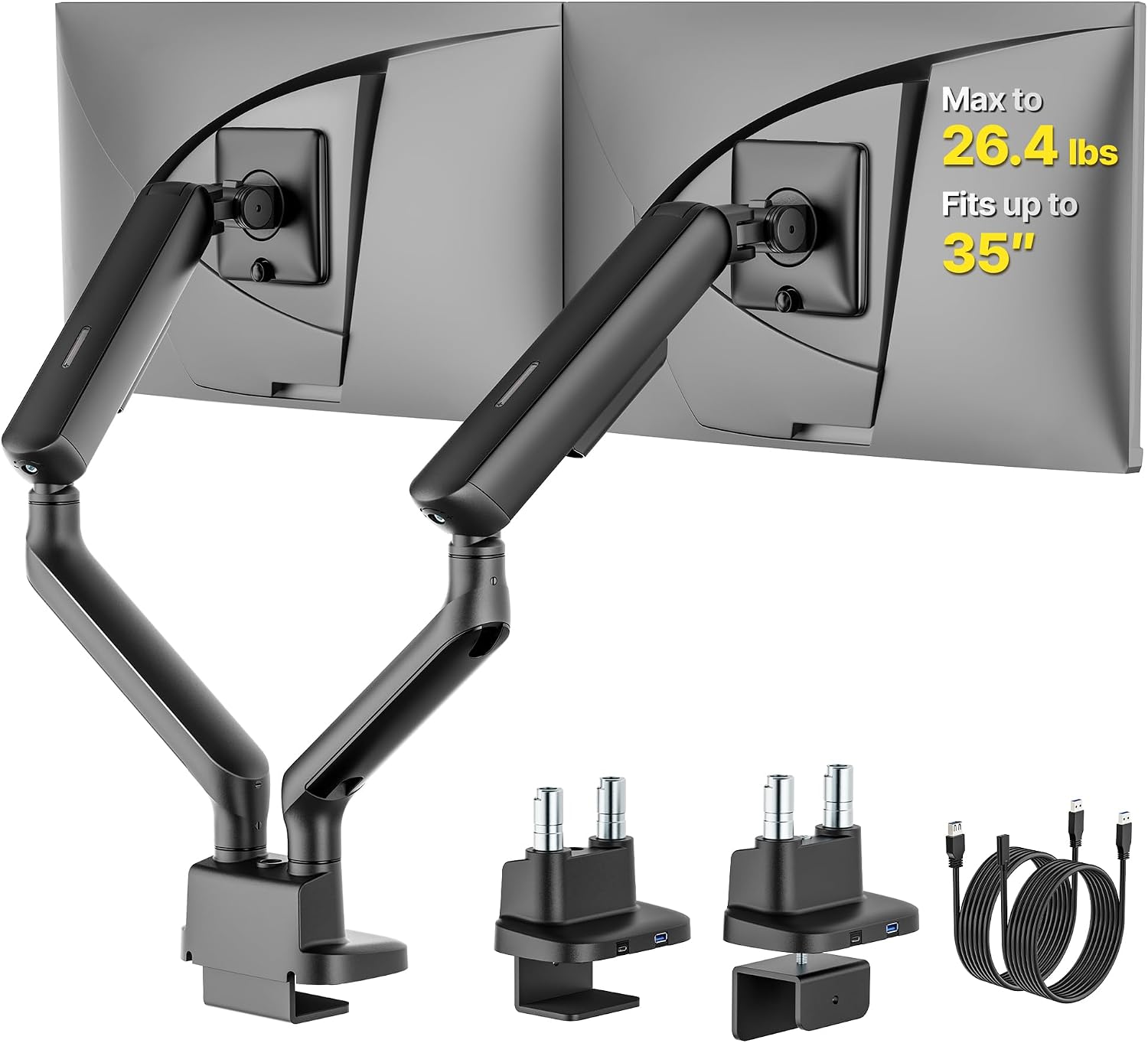
The monTEK is the dual arm I point people to when they want two screens at 27, 32, or 34 inches and they want the ports on the arm instead of on the desk. USB on the arm is a small thing that turns out to matter, because it keeps the cable channel occupied and keeps your charging cable off the desktop.
Mechanical spring is a different feel from gas spring. It is typically a screw-tension design, which means you set it once for your monitor weight and it stays. That is good for a setup that does not change, and less good if you swap panels often, since every swap means retuning the tension.
Dual arms in this class are where reach planning pays off most. Two panels at 32 inches need spread, and spread comes from the arm, not from the mount. Measure from your clamp point to the outer edge of where each panel needs to sit, and check that the arm can get there before you buy.
Should you buy the BenQ ErgoArm BDH01 Dual Monitor Arm?
Yes, if you are running two screens up to 35 inches and you want them on one clamp point. The 44 lb capacity figure is the highest stated here, and capacity is what keeps a dual arm from drifting when both panels are pushed out to full extension.
Skip it if you have one monitor, or if your desk is shallow and the clamp has to sit at the very back. A dual arm on a shallow desk can leave the panels closer than you want, and no adjustment fixes a geometry problem. Confirm the reach against your own desk depth first, because the name gives you screen fit and weight, not reach.
Should you buy the Acer Single Monitor Mount?
Yes, if you have one screen between 17 and 34 inches and you want it off the desktop without spending much. Fully adjustable gets you the tilt range and swivel that make a monitor usable at eye level, and a single arm holds still better than a dual at the same load.
Skip it if you plan to add a second monitor, if your panel is larger than 34 inches, or if you need the screen pushed deep into a corner of a very wide desk. Buy for the setup you will have in a year, not the one on the desk today.