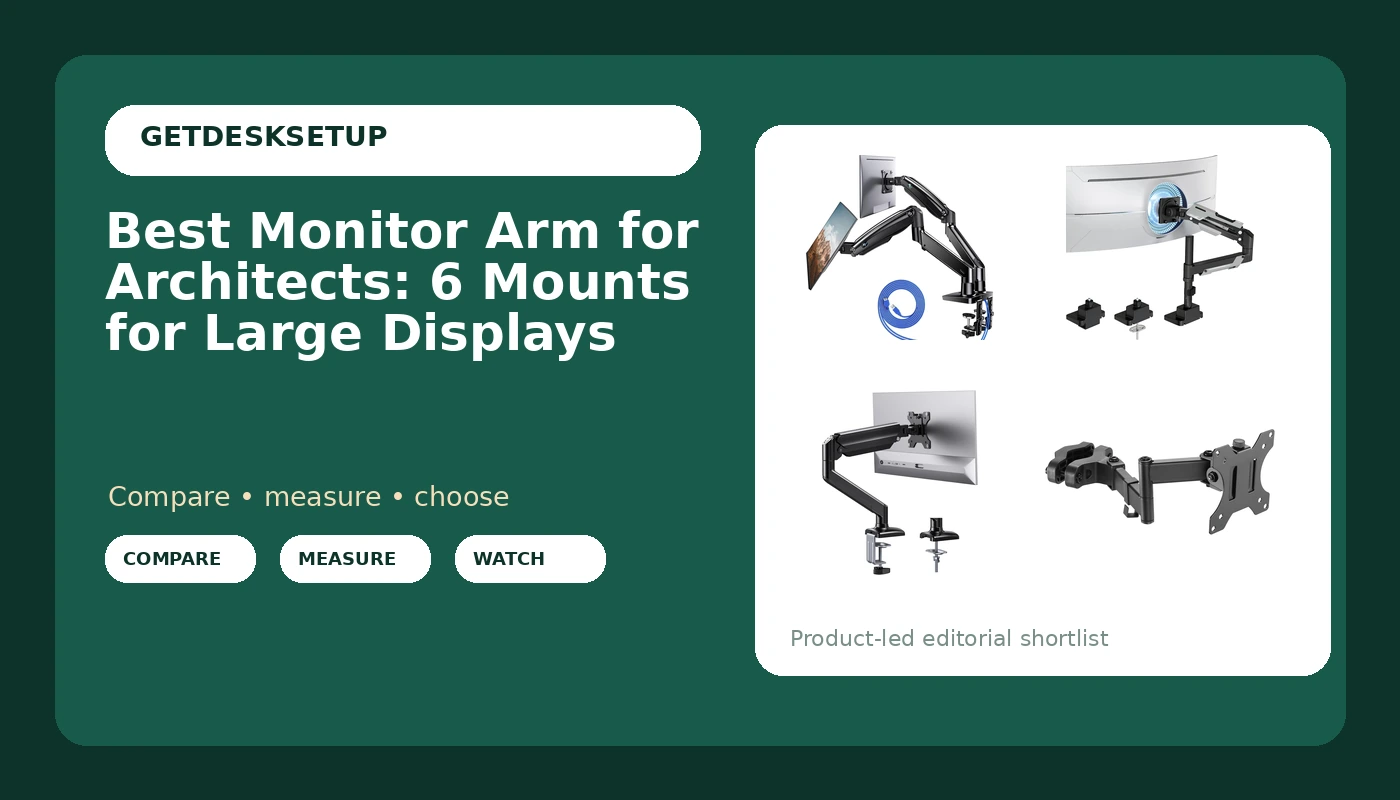
An architect's monitor is not a browsing monitor. You read drawings at 100 percent zoom, keep a model open on one screen and a sheet set on the other, and nudge the panel a dozen times a day when a colleague leans in to point at a detail. A monitor arm for architects has to carry a heavier panel than a general home office arm, hold its angle through that constant repositioning, and leave enough desktop clear to roll out a printed set. That narrows the field quickly, because most arms on the market are sized for a 24 inch panel that weighs very little and almost never moves.
This guide covers six arms that fit drawing work in different ways. Two are built around heavier or wider panels, one is a dual mount with a choice of clamp or grommet base, one handles screens from 24 to 57 inches on a single arm, one solves the problem of a display with no mounting holes, and one is a low cost gas spring arm for a lighter screen. Every screen size range, weight capacity, and mount type below comes from the product listing rather than from a figure filled in by hand.
Three numbers decide whether an arm works in an architecture setup: the weight capacity per arm, the VESA pattern on the back of the panel, and the desk thickness the base can close on. Get those right and the remaining differences are about how you like to work. Get them wrong and the arm sags, the panel drifts, or the clamp will not fit the desk you already own.
Related: Dual Monitor Setup Guide: Two Screens That Stay Aligned
Quick answer
The HUANUO Dual Monitor Stand for 13″, 40″ is the strongest fit for two screen drawing work because each arm is rated at 26.4 lbs and the base installs as either a clamp mount or a grommet mount. Choose the ARES WING Ultrawide Monitor Arm for 24 to 57 Inch Screen instead when one very wide panel replaces your pair.
Monitor arm for architects worth comparing
What separates these six arms is not marketing language, it is the numbers attached to each one. Three publish a weight capacity that clears 20 lbs, which matters because a 32 inch drafting panel can run past what a budget 24 inch arm will hold. Two publish a screen size ceiling at or above 36 inches. One lists support for both 75mm and 100mm VESA patterns by name. One ships adapter brackets for displays that have no VESA pattern at all.
The rest is mount geometry. A clamp mount needs a desktop edge with enough thickness to grip and open space underneath. A grommet mount needs a hole through the desktop, which many sit stand desks already have from the factory. If your desk has a cable tray, a control box, or a drawer unit screwed to the underside, measure that gap before you assume a clamp will close square.
Then there is reach and movement. A dual arm has to hold two panels at a distance that lets you angle both toward your chair. A single arm holding a large ultrawide has to carry that weight at the far end of its travel, which is the hardest position for any joint. Tilt range and swivel are the two specs that decide whether you can kill glare from a window without moving the whole desk.
Top pick
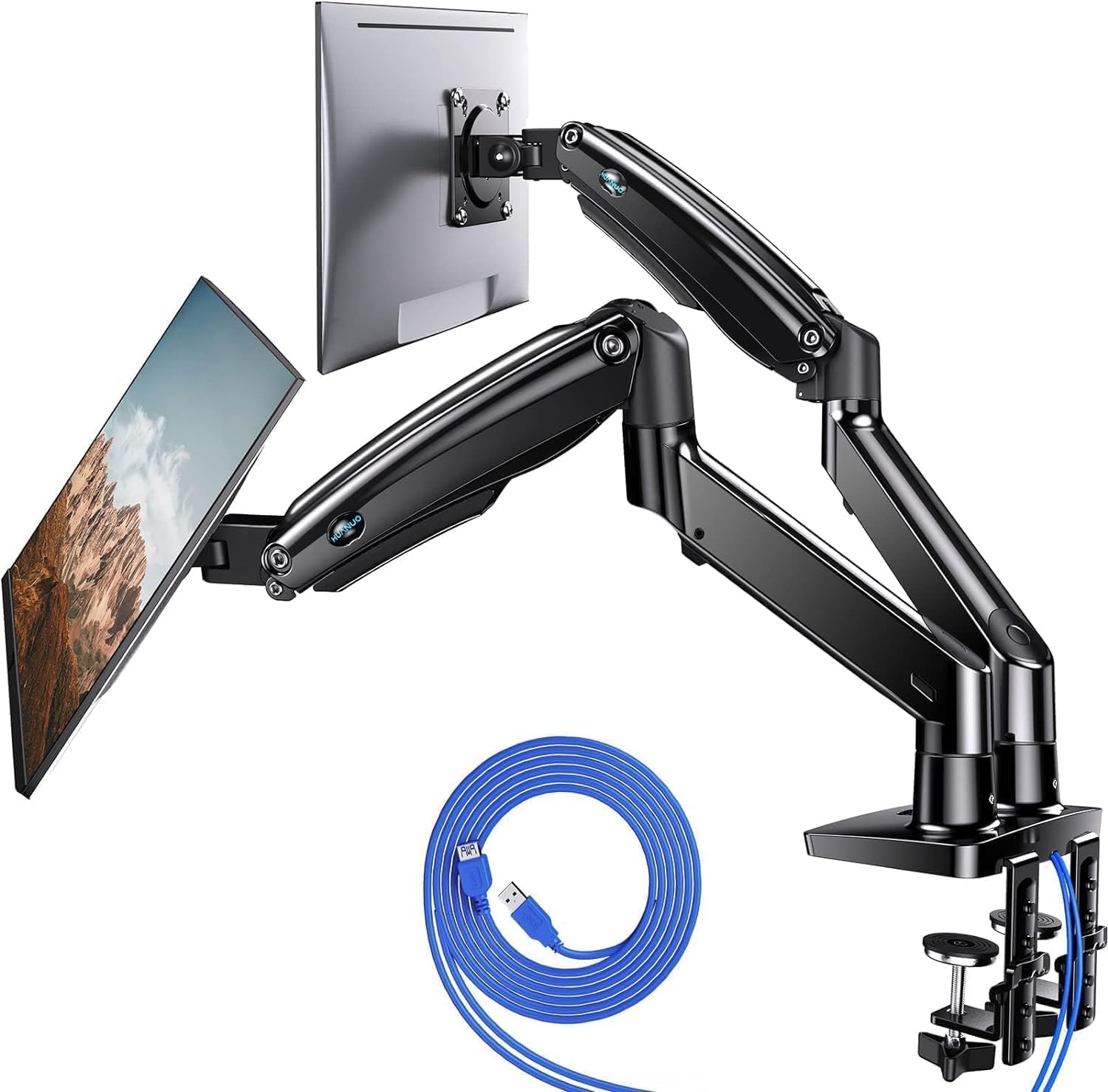
HUANUO Dual Monitor Stand for 13″, 40″, Premium Dual Monitor Mount with USB, Height Adjustable Monitor Stand for 2 Monitors, VESA Mount with Clamp/Grommet Base, Holds 26.4lbs per Arm, HNDS7
Check current Amazon price
A dual monitor mount for 13 to 40 inch screens with a height adjustable VESA mount, USB ports, and a base that installs as either a clamp mount or a grommet mount. Each arm is rated at 26.4 lbs, the highest per arm figure in this group.
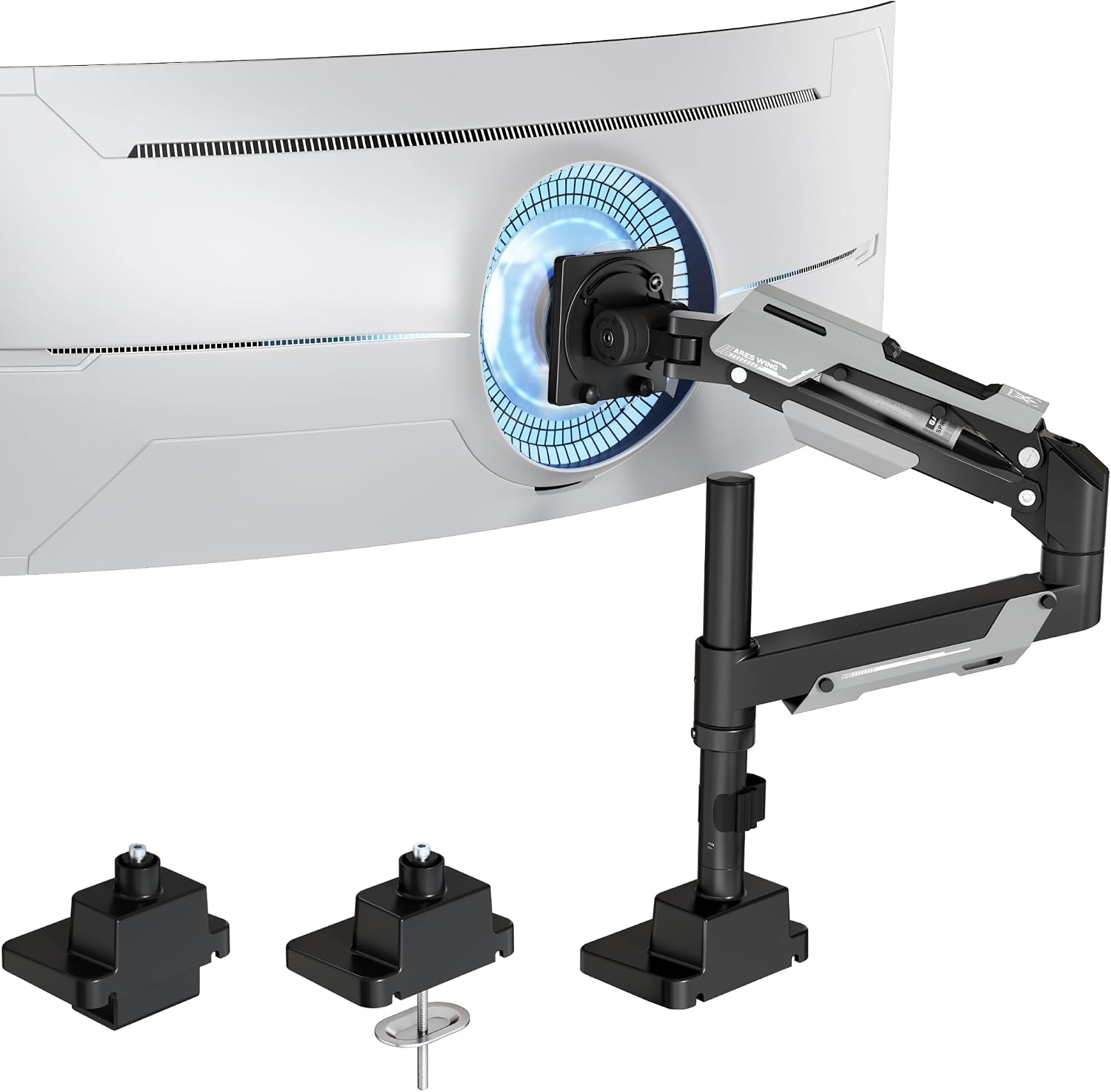
ARES WING Ultrawide Monitor Arm for 24 to 57 Inch Screen, Black
Check current Amazon price
An ultrawide arm built for screens from 24 to 57 inches, finished in black. It is the option to compare when one wide panel replaces two separate monitors, and the size range is the first spec to check against your display.
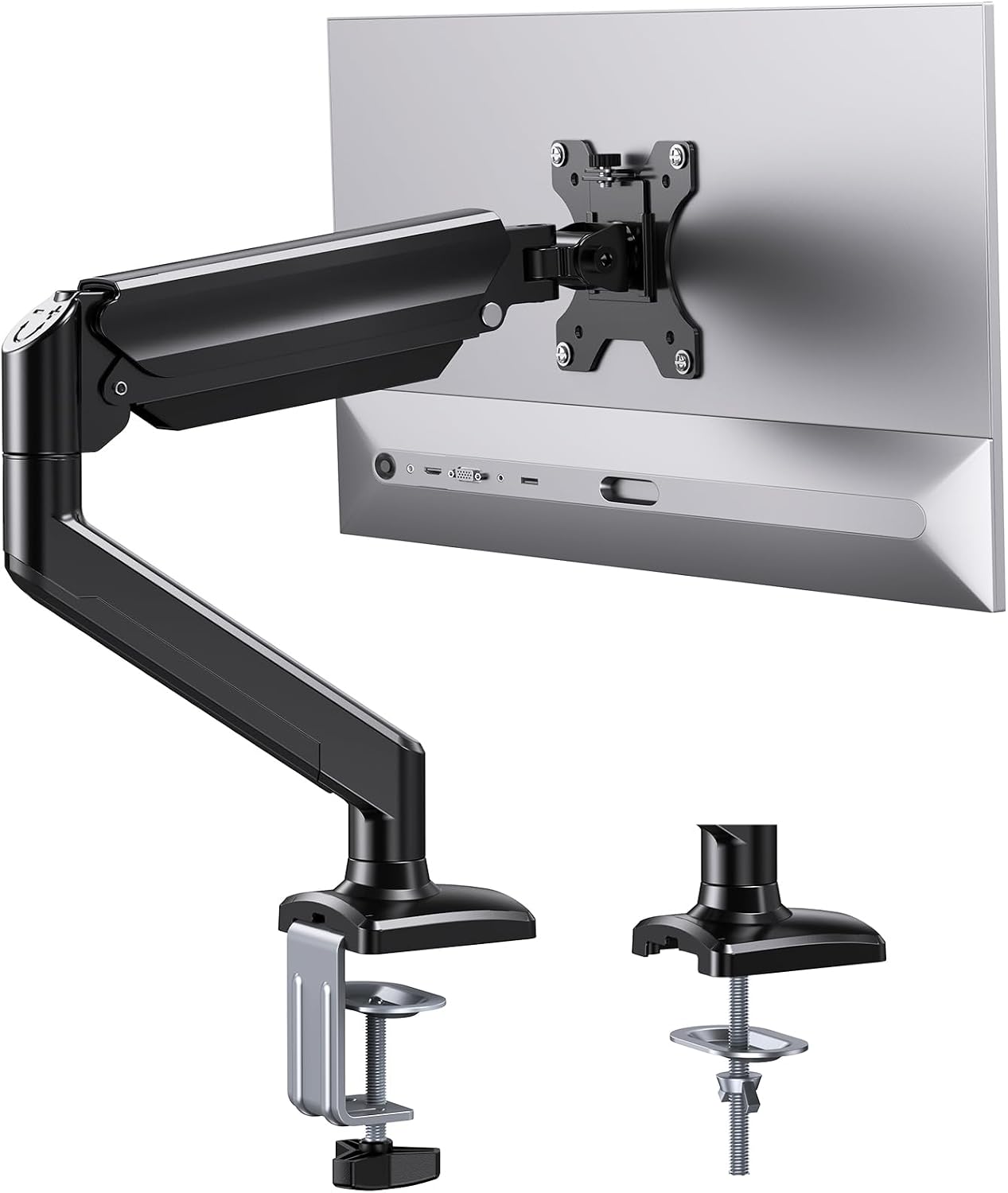
ErGear Single Monitor Arm for 13-36 Inch Screens, 22 lbs Capacity
Check current Amazon price
A single arm for 13 to 36 inch screens with a 22 lbs weight capacity. That range covers most 27 and 32 inch drafting panels with headroom left for a heavier model.
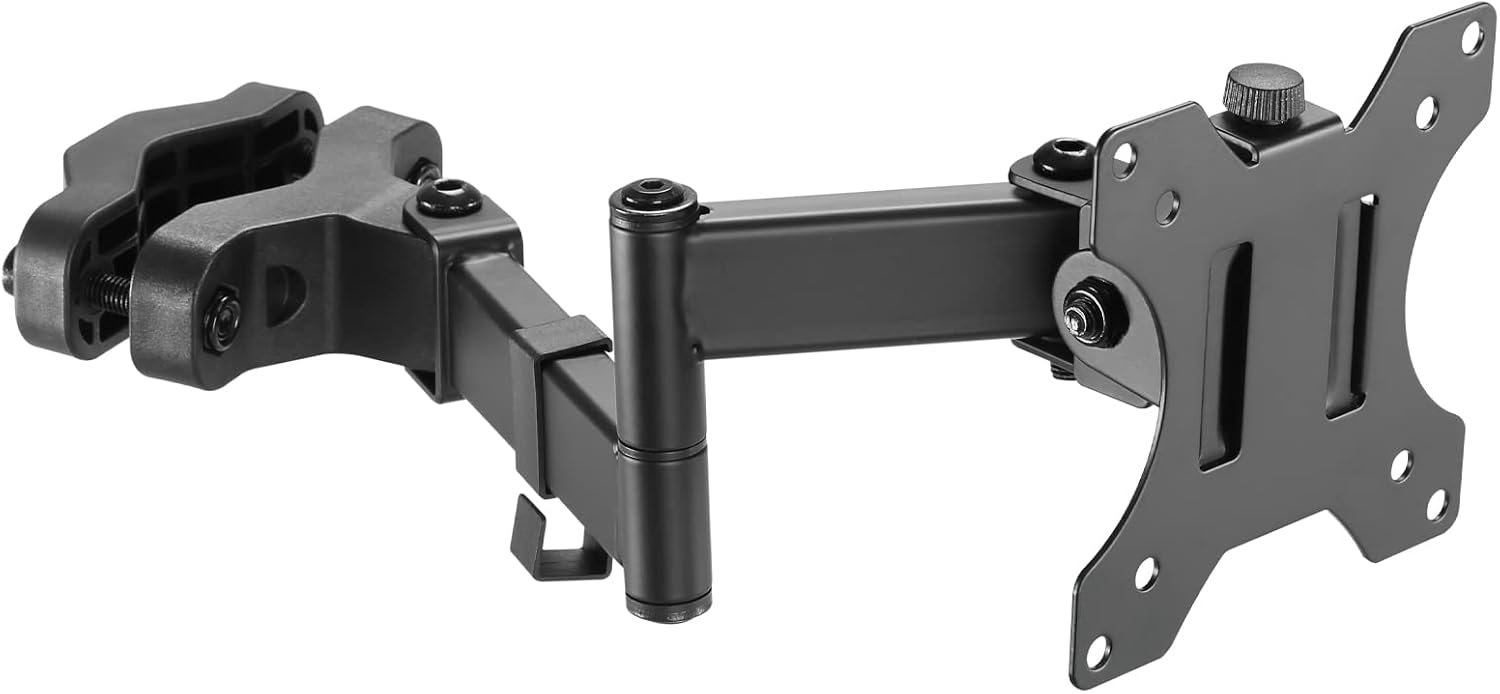
Pole Mount Monitor Arm for 17-32" Screens,17.6 lbs, VESA 75/100mm
Check current Amazon price
A pole mount arm for 17 to 32 inch screens with a 17.6 lbs weight capacity. It lists support for both 75mm and 100mm VESA patterns, so it fits panels with either hole spacing.
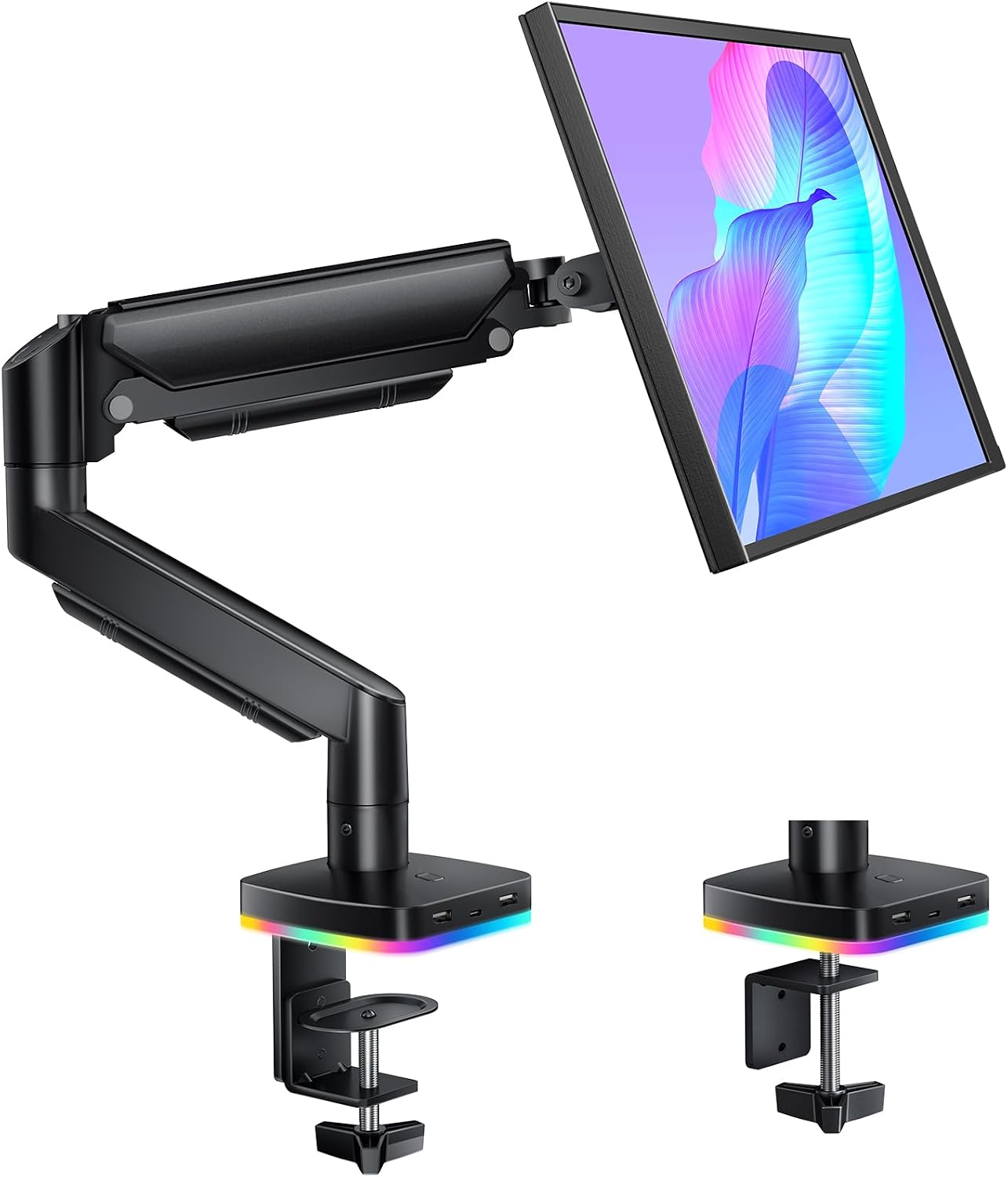
RGB Gas Spring Monitor Arm with USB Hub for 13-32 Inch Monitors
Check current Amazon price
A gas spring arm for 13 to 32 inch monitors with an integrated USB hub. The gas spring is the part that carries the panel, so match its rated range to your screen weight before anything else.
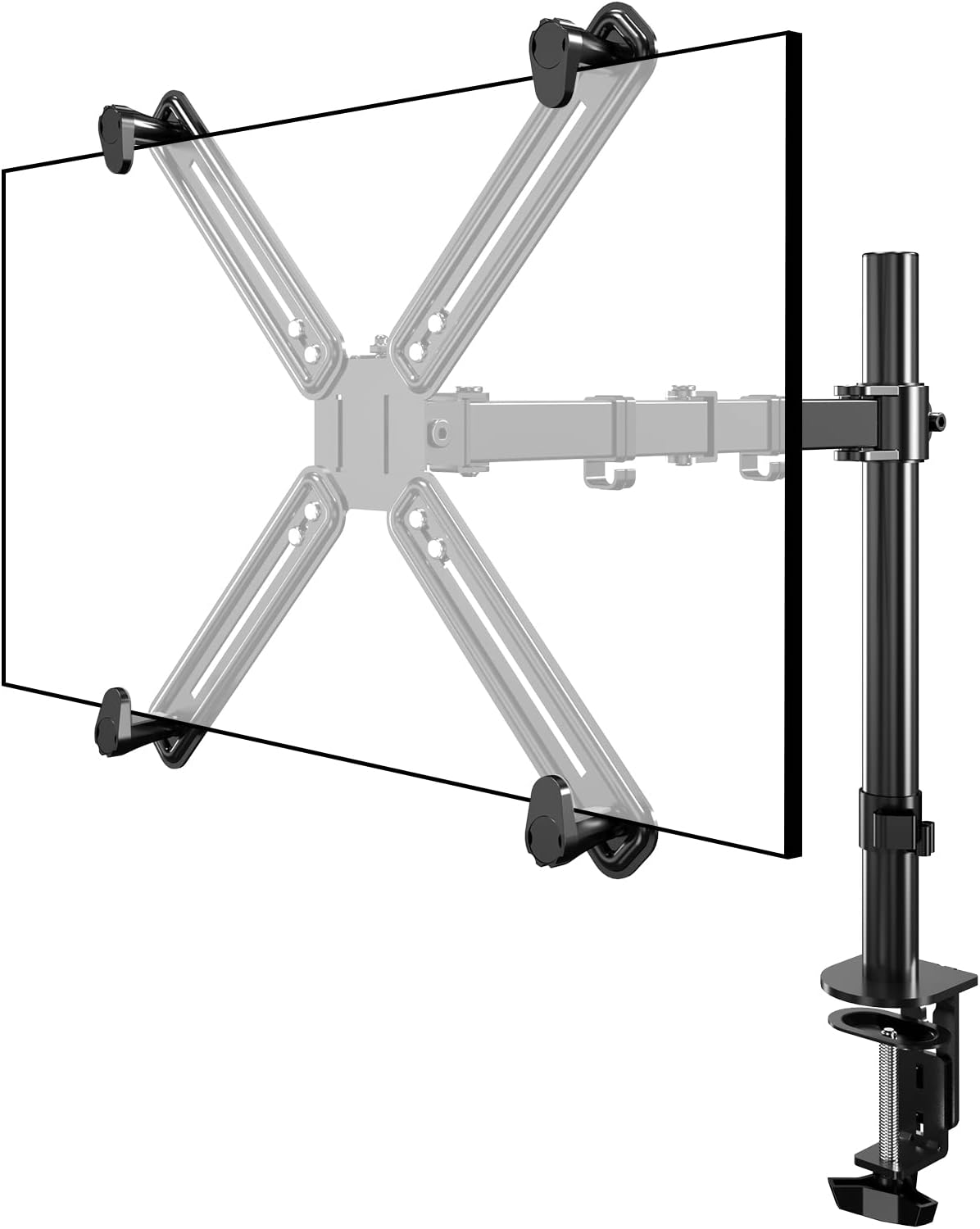
Non-VESA Single Monitor Arm Desk Mount with VESA Adapter Brackets
Check current Amazon price
A desk mount arm for monitors with no VESA holes, supplied with adapter brackets that create a mounting surface. It is the option when the display you already own has a fixed stand and no 75mm or 100mm pattern.
How these products were compared
This guide compares five things across the six arms: the stated screen size range, the stated weight capacity per arm, the VESA pattern support, the mount type and base hardware, and the features included in the box, such as USB ports, a second arm, or adapter brackets for a display with no holes.
Nothing here is presented as hands on testing. The screen size ranges and weight capacities are the figures published with each product, and they are the same figures you should check against your own panel before ordering. Where a product does not publish a number, this guide does not invent one.
Product names, images, and retailer links are matched by product code so that every card points to the product shown, and each card carries a single link so you can confirm current price and availability at the retailer.
How to choose the right monitor arm for architects
Start with the panel, not the arm. Weigh the monitor you intend to mount, or look up its weight without the stand, and compare it to the arm's weight capacity per arm. The HUANUO lists 26.4 lbs per arm, the ErGear lists 22 lbs, and the pole mount lists 17.6 lbs. Leave headroom, because a panel sitting at the very top of an arm's rating has no allowance left for the extra weight of an adapter bracket.
Then measure the desk. A clamp mount needs the desktop thickness at the edge plus clear space underneath, and a grommet mount needs a hole of the right diameter with clearance below it. Sit stand desks often have a frame rail or a control box near the back edge, and a clamp placed over one of those will not close square. Check the base hardware in the listing against the desk you actually own, not the desk you plan to buy later.
Decide how many panels you run before you decide which arm. Two 27 inch screens need a dual arm with two independent weight ratings and enough reach to angle both inward. One large ultrawide needs an arm whose size range covers it, which is what the 24 to 57 inch range on the ARES WING is for. A single arm on a 32 inch screen is the simplest arrangement and the easiest to keep aligned. A VESA monitor arm for architects lives or dies on the pattern it supports, so confirm the hole spacing on the back of each panel before ordering anything.
Check that pattern carefully. 75mm and 100mm square layouts cover most monitors, and the pole mount lists support for both. If a display has no mounting holes at all, because it is an all in one unit or a screen with a fixed stand, the non VESA desk mount ships adapter brackets that create a mounting surface. Confirm those brackets suit your specific model, since an adapter depends on the shape of the back panel.
Finally, look at how the arm moves. A gas spring arm balances the panel with spring tension, so the weight rating matters more than the finish. A pole arm moves the screen up and down a post. Tilt range and swivel decide how far you can angle a panel toward your chair or away from a window. Route the cable through the cable channel instead of letting it hang, as covered in how to route monitor cables so they stop pulling on the arm, because a cable that pulls on an arm changes the monitor angle within a week.
Top pick: HUANUO Dual Monitor Stand for 13″, 40″
The HUANUO dual mount is the pick because it answers the two questions that come first: how much does each arm hold, and how does it attach. Each arm is rated at 26.4 lbs, the highest per arm figure in this group, with a screen range of 13 to 40 inches. The base installs as a clamp mount or a grommet mount, so it suits a desk edge and a desktop with a pre drilled hole. The mount is height adjustable and includes USB ports on the base.
The trade off is that it is a dual arm. Two arms and a wider base take more desk edge than a single mount, and if you run one screen the second arm is dead weight. It also assumes both panels have VESA holes, since the adapter brackets in this guide belong to a different product. Skip it if your desk has no usable edge for the clamp and no grommet hole, or if your panels together sit above the per arm rating.
Alternatives to consider
The ARES WING Ultrawide Monitor Arm for 24 to 57 Inch Screen is better suited to a single very wide display, with a size range running from 24 inches to 57 inches. It is the only arm here aimed at the largest ultrawide panels, and the size range is the limit to check first, since size and weight are separate specs on any arm.
The ErGear Single Monitor Arm for 13-36 Inch Screens is a stronger fit when one screen on a single arm is the whole job and 22 lbs of capacity is enough. The 13 to 36 inch range covers most 27 and 32 inch drafting panels with room above the typical weight.
The Pole Mount Monitor Arm for 17-32" Screens, the RGB Gas Spring Monitor Arm with USB Hub for 13-32 Inch Monitors, and the Non-VESA Single Monitor Arm Desk Mount with VESA Adapter Brackets cover the remaining cases: a 17.6 lbs pole arm that lists both 75mm and 100mm VESA patterns, a low cost gas spring arm with an integrated USB hub for a lighter 13 to 32 inch screen, and a desk mount with adapter brackets for a display that has no VESA pattern at all.
Day-to-day use and maintenance
Assemble in order. Attach the base, set the arm on it, mount the panel last, then adjust tension. Tightening a gas spring or a joint before the panel is on the arm is how people strip hardware, and a screen arm for architects gets adjusted far more often than a fixed stand, so the setup order is worth getting right once.
In the first week, re check the base. A clamp mount can settle into the desktop finish and need a quarter turn after a few days of use, and a grommet mount can do the same. Check it once more after a week, then leave it alone.
Route cables through the cable channel and leave slack at both ends. A taut cable running to a moving arm pulls that arm, and the monitor angle drifts on its own. Leave a loop behind the panel so the tilt range and swivel stay usable instead of fighting the cable.
Respect the weight capacity. Hanging a laptop, a headset, or a bag on an arm rated for a monitor is how arms fail. If you add an adapter bracket, its weight counts against the arm's rating as well. Clean the arm and the panel with a dry or slightly damp cloth rather than solvent, and keep liquid away from the joints and the USB hub. If a joint starts to drift, check the tension screw before you assume the arm is finished.
Buying checklist
- Weigh the monitor without its stand, then compare that figure to the arm's stated weight capacity per arm rather than the capacity of the whole mount.
- Measure the desktop thickness at the edge, plus any frame rail, cable tray, or drawer underneath, before choosing a clamp mount.
- Confirm the VESA pattern on the back of each panel and check that the arm lists it. If there are no holes, choose an arm that ships adapter brackets.
- Check the screen size range against your actual diagonal, especially on an ultrawide.
- Decide between a gas spring and a pole arm based on how you move the screen, and check the tilt range and swivel if glare is a problem.
- Read the tension adjustment and maintenance instructions that come with the arm.
- Verify current price, availability, and return terms at the retailer before ordering.
Final recommendation
Choose the HUANUO Dual Monitor Stand for 13″, 40″ when you run two panels, each under 26.4 lbs, and your desk accepts a clamp mount or a grommet mount. It is the best monitor arm for architects in this group for the common two screen drawing setup, because the per arm weight rating and the two base options cover the failure points that matter most.
Choose the ARES WING Ultrawide Monitor Arm for 24 to 57 Inch Screen when a single ultrawide replaces your pair, and choose the ErGear Single Monitor Arm for 13-36 Inch Screens when one 27 or 32 inch panel on a 22 lbs arm is the entire job.
For a lighter 13 to 32 inch screen, the RGB Gas Spring Monitor Arm with USB Hub is the low cost route. For a 17 to 32 inch panel where you want both common VESA patterns supported, the pole mount is the one to compare. For a display with no mounting holes, the non VESA desk mount with adapter brackets is the only workable choice in this group. A monitor mount for architects is correct only when the numbers line up, so match the panel weight, the VESA pattern, and the desk thickness before anything else.