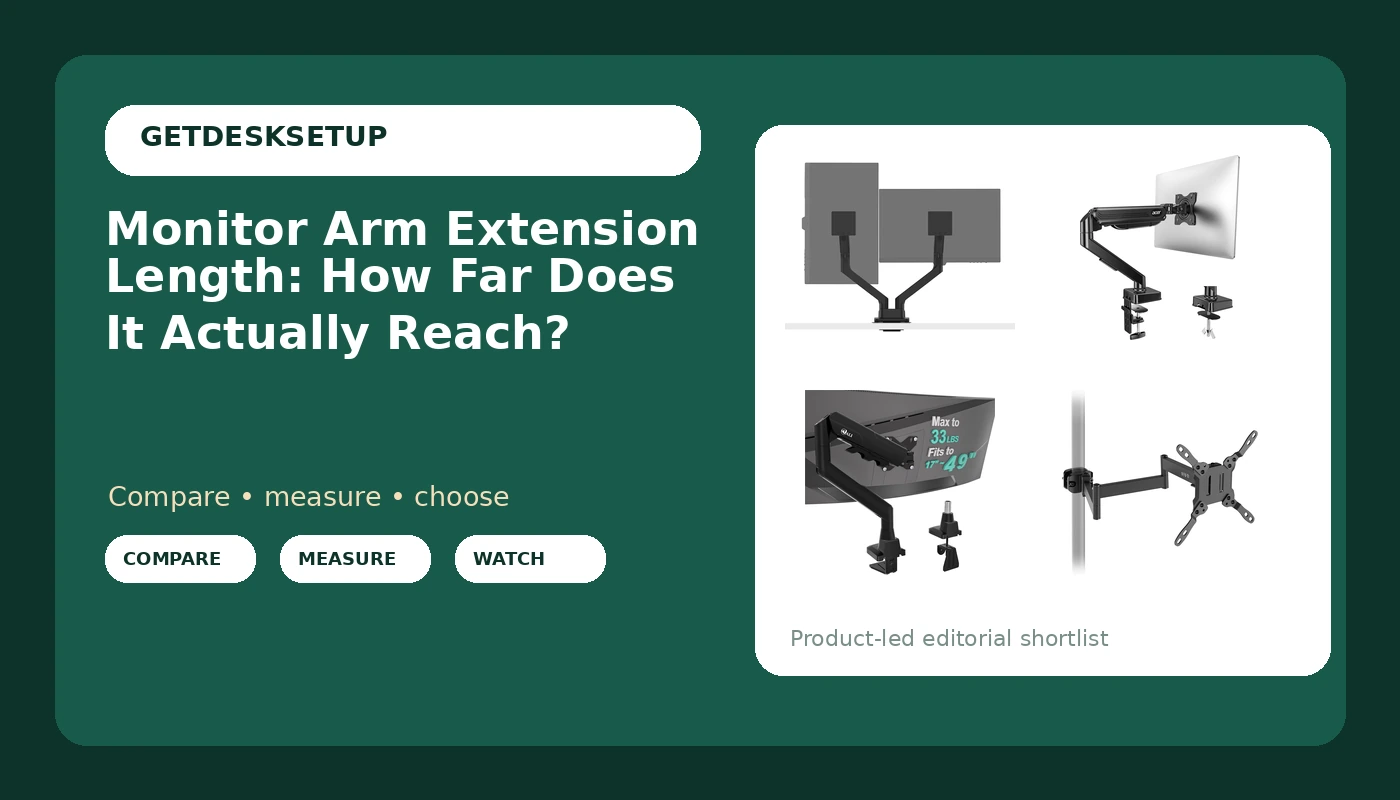
A monitor arm's reach is the number nobody checks until the screen is already on the desk and sitting two inches too close. If you have ever pushed a mount to the back edge and still felt crowded, the arm was not the problem. Monitor arm extension length was. It is the measured distance between the mounting point, either a clamp at the desk edge or a pole, and the plate your screen bolts onto. That one figure, read next to the weight capacity and the vesa pattern on the back of your display, decides whether an arm clears a deep desk, whether it can swing a panel sideways over a second chair, and whether a heavy screen stays where you set it. This page is monitor arm extension length explained with the four arms I would put on a client desk, plus the measurements to take before you order.
Related: VESA Mount Patterns Explained →
Quick answer
Monitor arm extension length is quoted with the arm fully extended, from the center of the base or pole to the center of the VESA plate, and it is always a maximum rather than a working figure. A listing that says a mount fits screens up to 34 inches is describing screen size, not reach, and those two numbers do not move together. Height matters as well: as you raise an arm, horizontal reach shrinks, because the joints fold instead of stretching. Two more figures travel with reach. Weight capacity tells you the heaviest panel the arm is built to hold, and the VESA pattern tells you whether your screen's bolt holes line up at all. Most monitors use a 75 x 75 mm or 100 x 100 mm pattern. If your panel is heavier than the stated capacity, or your desk edge is too thick for the clamp, no amount of adjustment fixes it.
Four useful options
| Model | Best fit | What stands out |
|---|---|---|
| BenQ ErgoArm BDH01 Dual Monitor Arm for 2 Screens Up to 35'' & 44lbs. Black | Two large screens sharing one mounting point | Dual-arm design, listed up to 35 inches, stated 44 lb capacity |
| Acer Single Monitor Mount, Fully Adjustable Monitor Arm Fits 17-34" Screens | One screen between 17 and 34 inches | Fully adjustable single arm |
| WALI Ultrawide Single Monitor Arm for 17-49 inch Curved Screen, up to 33lbs | One curved ultrawide panel | Listed for 17 to 49 inch curved screens, stated capacity up to 33 lbs |
| VIVO Black Long Pole Mount Monitor Arm | Desks where vertical travel matters more than forward reach | Pole-mounted design instead of a desk-edge clamp |
Dual-screen pick: BenQ ErgoArm BDH01 Dual Monitor Arm for 2 Screens Up to 35'' & 44lbs. Black
Two screens on one base changes the reach question. Each arm has to clear the other screen's bezel before it can sit at your preferred angle, so the reach you feel is the distance at the outer edges, not the average. A dual arm also puts more torque on a single clamp mount, which is why the stated capacity and your desk thickness matter more here than on a single-arm setup. Route both display cables through the cable channel before you tighten anything; a cable that hangs free will pull one arm out of alignment within a week. Skip this one if you run a single screen, if your panels are heavier than the stated capacity, or if your desktop is a thin hollow-core top that cannot take that clamp load.
Single-screen pick: Acer Single Monitor Mount, Fully Adjustable Monitor Arm Fits 17-34" Screens
Single-screen arms are where reach gets honest. A 27 inch panel at a comfortable viewing distance needs less forward reach than most people assume, and the more common failure is the opposite one: an arm that reaches too far forward and lets you pull the screen into your face. If your desk is 24 inches deep, the clamp sits at the back edge and the geometry usually works out. If your desk is 30 inches deep, measure before you buy, because that extra six inches has to come out of the arm's extension. Skip this one if you plan to add a second display later, if you run a 49 inch ultrawide, or if your panel weighs more than the capacity the listing states.
Ultrawide pick: WALI Ultrawide Single Monitor Arm for 17-49 inch Curved Screen, up to 33lbs
A curved ultrawide adds a wrinkle to every reach calculation. The mounting plate sits behind the curve, so the front of the screen is further from the base than the plate position suggests, and the panel is also wider, which means the arm carries its weight further off center. That is why a mount listed for curved screens up to 49 inches is worth having even if a generic 32 inch arm technically fits the VESA pattern. Check the stated capacity against your panel's actual weight, and set the tilt range and swivel after the screen is mounted, not before. Skip this one if you need two displays, or if your ultrawide is heavier than the stated capacity, because a sagging arm on a wide panel is visible immediately.
Pole pick: VIVO Black Long Pole Mount Monitor Arm
A pole mount solves a different problem than a desk-edge clamp. Instead of folding joints, the arm rides a vertical post, so raising and lowering the screen does not eat into the horizontal distance the way it does on an articulating arm. That makes it useful on a desk with a lip, an apron, or a drawer unit that blocks a clamp, and useful for anyone who alternates between sitting and standing and wants the screen to travel with them. The trade-off is reach: the horizontal distance is set by the arm section itself, and a pole needs vertical clearance behind the desk. Skip it if you need the screen swung far to the side, or if nothing behind your desk can take the mounting hardware.
Prices and availability may change. Product images, names, and retailer links are matched to verified listings. No current price, rating, stock status, or measured result is stated here without current evidence.
What monitor arm extension length actually measures
Reach is quoted in one of two ways, and the two are not interchangeable. The first is total extension: the distance from the center of the base or pole to the center of the plate with every joint straight. The second is usable reach at working height, which is always shorter, because arms are built to fold. Some listings label this monitor mount extension length; others print a maximum horizontal travel figure and leave you to work out the rest. If the spec sheet gives you only the folded footprint and the maximum extension, you have the range, not the number you will actually use.
Joint count sets the ceiling. A single-joint arm pivots at one point and swings on an arc, so its reach drops quickly as the screen rises. An articulating arm with two or three joints reaches further and can be pulled forward in a straight line, but each extra joint adds a place where a heavy panel can sag unless the tension is set correctly.
Screen shape changes the number too. On a curved ultrawide, the mounting plate sits behind the curve, so the front of the screen is an inch or two further away than the plate position suggests. Measure from the plate, then add the curve depth before you decide an arm is long enough.
Then there is the desk itself. Reach only means something relative to where the base sits. A clamp mount sits at the back edge, so a 30 inch deep desk eats a good part of the total. A grommet mount through a cable hole can move the base forward. A pole mount can move it sideways. Before comparing arms, measure from your intended mounting point to where the front of the screen should sit, and treat that as your target reach. For the vertical half of the same question, see monitor height at a standing desk.
Reading reach with weight capacity, VESA pattern, and mount type
The spec you want is what listings call vesa monitor arm extension length, and it is quoted from the center of the mounting base to the center of the plate with the arm straight. Manufacturers rarely print it alone. It arrives next to the VESA pattern, the weight capacity, and the mount type, and all four have to line up with your screen and your desk.
Start with the VESA pattern. The back of your monitor has four bolt holes at a fixed spacing, most often 75 x 75 mm or 100 x 100 mm. If the pattern does not match, the arm is not an option, no matter how good the reach looks on paper.
Then the weight capacity. Weigh the panel, not the box, and add anything you hang off it. A gas spring arm is tuned for a range, and a panel at the bottom of that range can float upward while one at the top drifts down. An arm rated far above your panel is not automatically better; it may sit outside the tension range you can adjust.
Mount type decides where the base can sit. A clamp mount needs a desk edge thin enough to grip and clear of any apron or drawer. A grommet mount needs a hole through the top. A pole mount needs vertical clearance behind the screen.
Finally, tilt range and swivel decide whether the reach is usable at an angle. A long arm that barely tilts cannot place a screen where you actually look. And remember that screen arm extension length shrinks as the arm rises, so any single quoted figure is a best case, not a promise at eye level.
A five-step check, in order:
- Measure from your intended mounting point to where the front of the screen should sit at your normal viewing distance.
- Weigh the panel and note the VESA pattern on the back of it.
- Check the desk: edge thickness for a clamp mount, hole diameter for a grommet mount, clearance for a pole.
- Compare the stated extension against your target reach, remembering that reach drops as the arm rises.
- Set the tension with the panel mounted, route the cables through the cable channel, and recheck the angle a day later.
Practical checks before you order
- Measure desk depth first. On a 24 inch deep desk most screens end up closer than people expect, and reach is rarely the limiting factor. On a 30 inch deep desk it usually is.
- Weigh your monitor. If the panel is heavier than the stated capacity, stop there and pick a different arm.
- Test the clamp on the desk edge before loading the arm. Clamp first, then load, then tighten. Reversing that order can crack a hollow-core top.
- Leave slack in the cables at full extension. A cable that goes tight when the arm swings will drag the screen back within a week.
- Recheck tilt range and swivel at your seated height, not standing next to the desk. Reach and angle interact, and the arm you liked on paper may sit differently at eye level.
Which option should you choose?
Choose the BenQ ErgoArm BDH01 Dual Monitor Arm for 2 Screens Up to 35'' & 44lbs. Black when two screens share one mounting point and both are large. Choose the Acer Single Monitor Mount, Fully Adjustable Monitor Arm Fits 17-34" Screens when you run one screen between 17 and 34 inches and want full adjustability at the lowest entry point. Choose the WALI Ultrawide Single Monitor Arm for 17-49 inch Curved Screen, up to 33lbs when the whole desk is one curved ultrawide panel. Choose the VIVO Black Long Pole Mount Monitor Arm when vertical travel on a post suits your desk better than a desk-edge clamp.
One caveat applies to all four: none of these listings publishes a single reach figure in the product name, so confirm the extension measurement, the VESA pattern, and the weight rating on the listing page before you order. Reach is the spec that decides whether an arm works on your desk, and it is the one most often left out of a short description.
The bottom line
Monitor arm extension length is the distance from the mounting point to the plate, and it is the number that decides whether your screen lands where you actually look. Read it together with the weight capacity, the VESA pattern, and the mount type, because reach alone will not rescue an arm that cannot hold your panel or clamp to your desk. Measure your desk depth, weigh your monitor, and write down the pattern before you compare anything. The cheapest correct arm beats the most expensive wrong one every time. If two screens share a base, start with the dual arm. If one curved ultrawide is the entire desk, start with the ultrawide arm.